Account
Team and roles
Invite teammates as administrators, editors or managers, and limit venue managers to the signs and screens at their own locations.
Only administrators see Team.
Roles
| Role | Can |
|---|---|
| Administrator | Everything, including managing the team |
| Editor | All content and screens, but not the team |
| Manager | Only the signs and screens at their own locations |
Managers are meant for general managers at a venue. They see the signs and screens at their own locations, and they can’t create templates, feeds or signs.
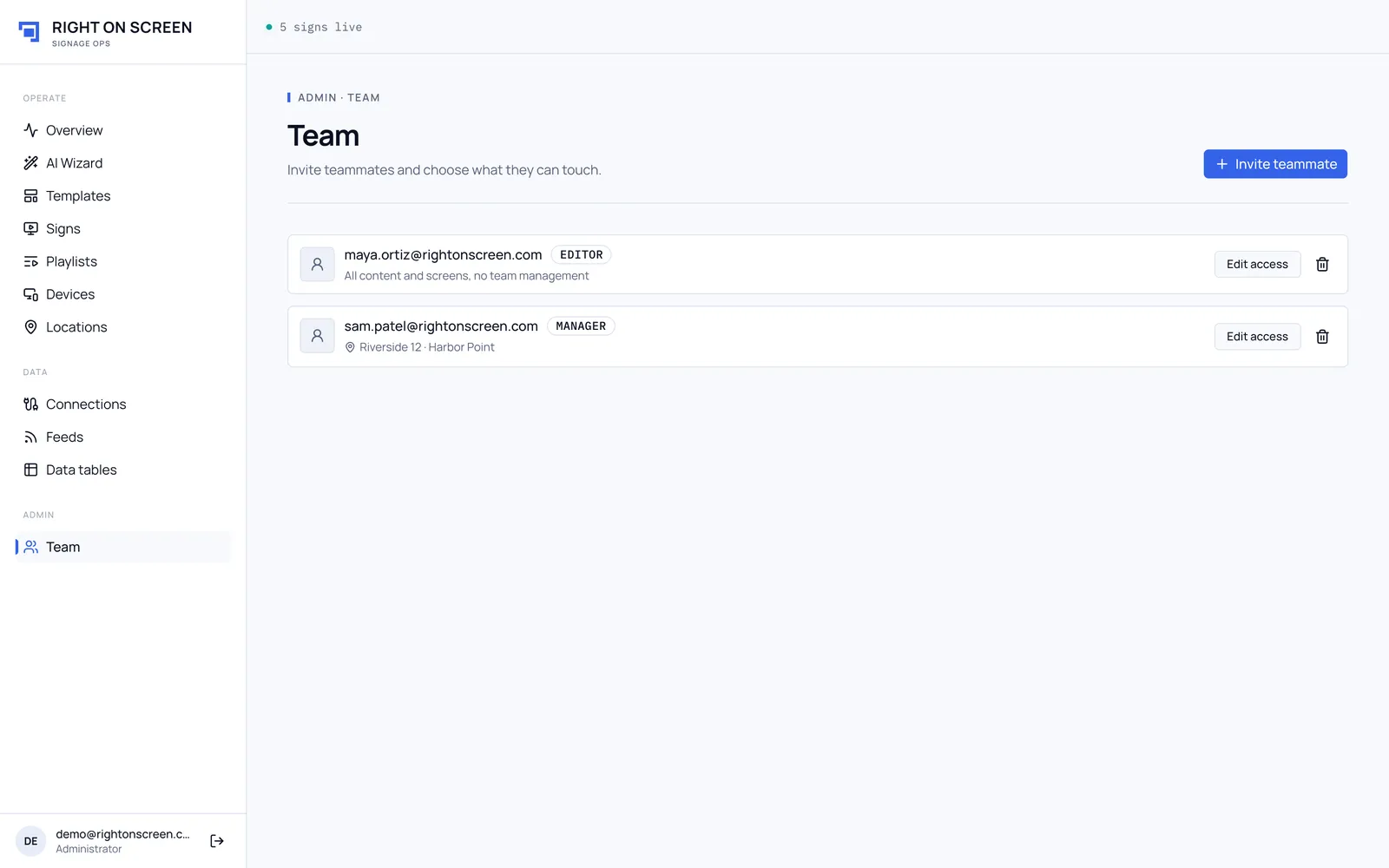
Invite a teammate
- Go to Team and click Invite teammate.
- Enter their Email and choose a Role. For a Manager, tick Their locations too.
- Click Send invite. They get an email inviting them to sign in.
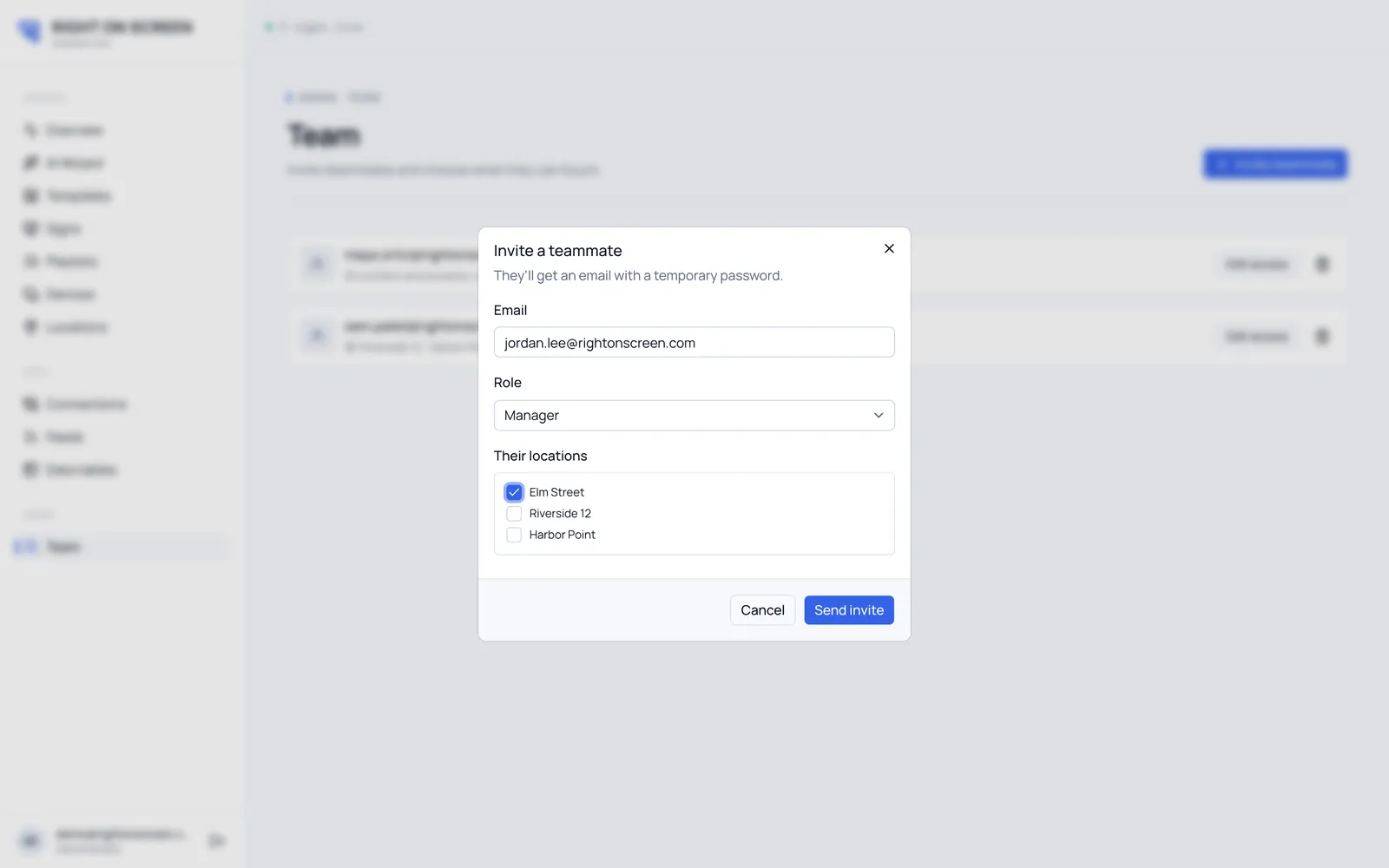
Choose a manager’s venues
Click Edit access on their row and tick Their locations. A manager with no locations can’t see anything.
Change a role or remove someone
Use Edit access to change a role, or Remove access to take them off the team. If this was their only team, their login is removed too.
You can’t change your own role or remove yourself. Another administrator has to do it, which means an account always keeps at least one administrator.