Screens
Set up a screen
Install the Right On Screen player on Windows, macOS, Linux or Android behind any TV, then pair it with the six-character code it shows.
A screen is a TV plus a small computer wired to it. The player runs on the computer, not on the TV itself. It can be a mini PC, a laptop or an Android stick.
Download the player
On Devices, click Get the player and choose the computer’s system:
| System | Download |
|---|---|
| Windows | Installer (.exe) |
| macOS | Apple silicon (.dmg) |
| macOS (Intel) | Intel Macs (.dmg) |
| Linux | AppImage (x86_64) |
| Android | Sideload (.apk) |
Install it and open it. The player starts with the computer from then on, so a screen that loses power comes back on its own. Desktop players update themselves. On Android, install a newer .apk to update.
Pair the screen
- The player fills the TV and shows a code, like
K7P-2QX. - In the dashboard, click Add a screen.
- Type the Code from the screen. Optionally add a Name and a Location.
- Click Connect screen.
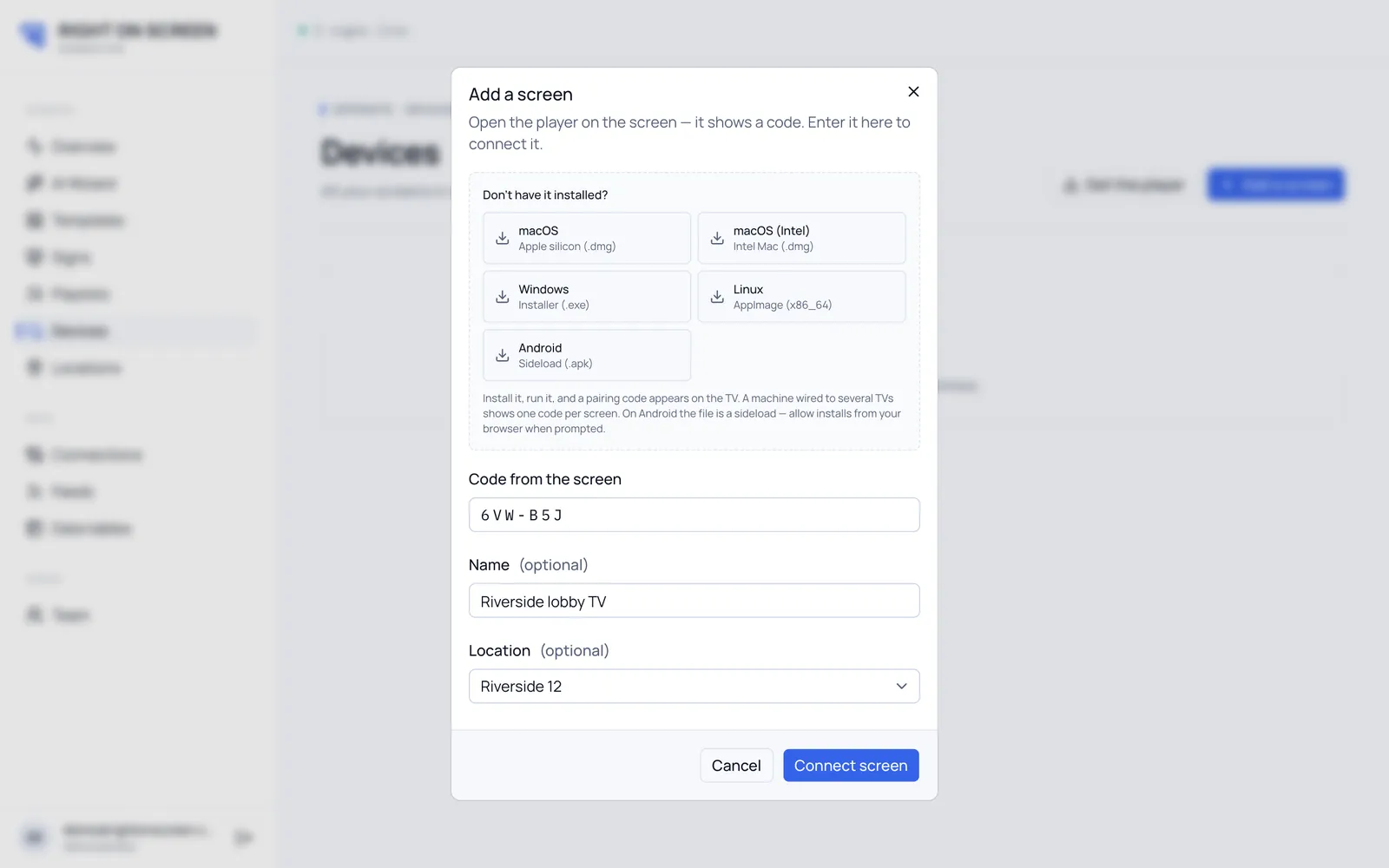
The screen is now listed under Devices. Next, choose what it plays.
A computer wired to several TVs shows a different code on each one. Pair each code on its own: every TV becomes its own screen with its own content.
If pairing fails
- That code is invalid or has expired: codes expire, so read the one on screen now and try again.
- Your plan covers N screens: you’re at your plan’s screen limit. Remove a screen you no longer use, or ask us to raise the limit.
When the internet drops
Each player keeps a copy of what it’s playing. If the connection drops, the screen carries on showing it and catches up when it’s back.