Publish
Rules and fixed values
Hide rows and override single values for one sign or one venue, without editing the template or the data.
There are three places to adjust what a screen shows. Each works at a different level.
| Where | Affects | Takes effect |
|---|---|---|
| Data table Rules | Every sign using the table | On save |
| Sign: What this sign shows | That one sign | When you republish |
| Location: What this venue shows | Every screen at that venue | Straight away |
Hide rows on one sign
- On Signs, open What this sign shows for the sign.
- Pick the list under Lists in this feed, then a field under Hide by.
- Untick anything the sign shouldn’t show and click Save.
- Republish the sign.
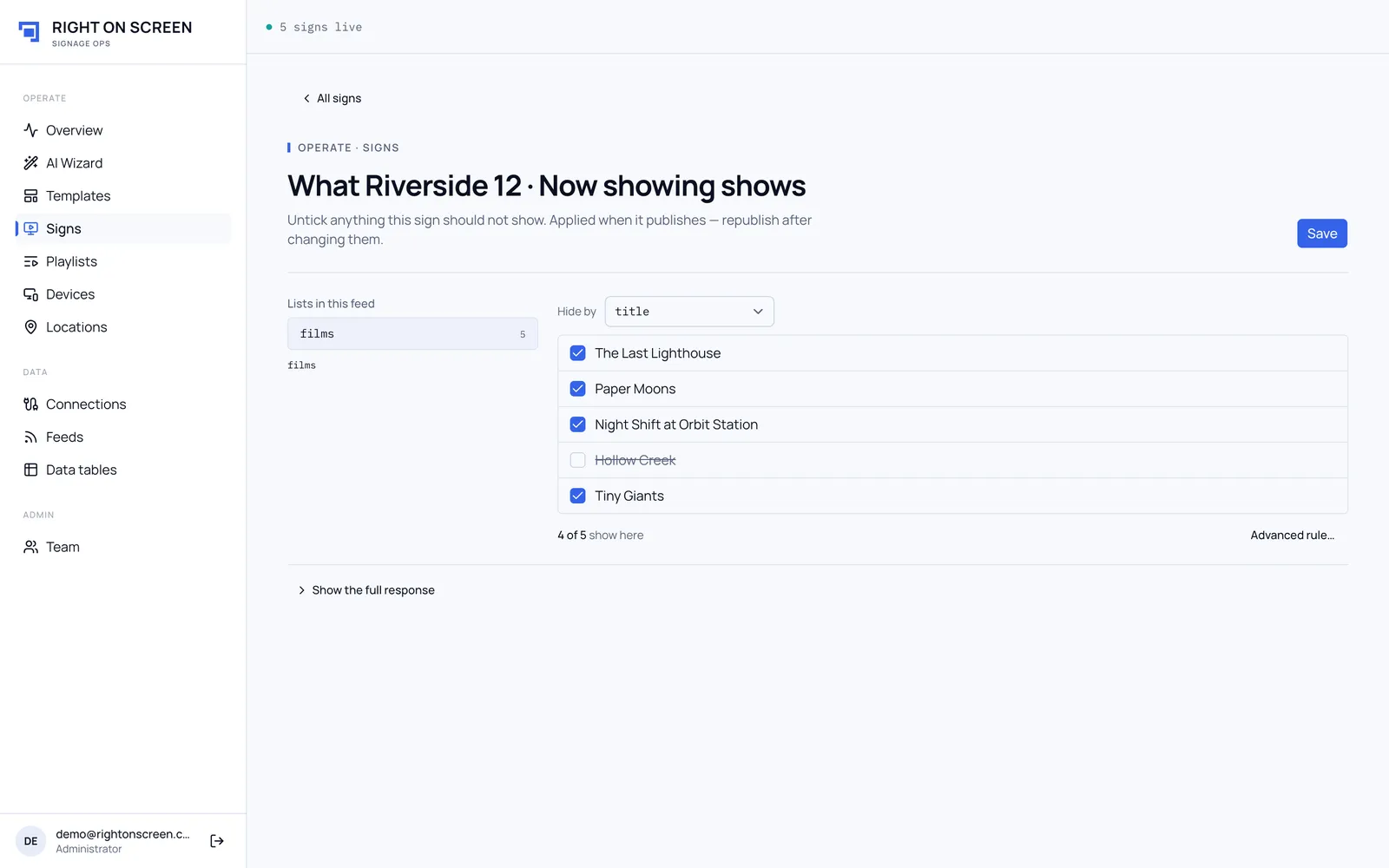
Signs built on a data table show Nothing to filter here for now. Hide their rows with the table’s own Rules instead.
For anything more specific, use Advanced rule… and Add a rule with is, is not, is one of or is none of. With no rules, every row shows. The row shows a badge with the number of rules.
Hide rows at one venue
Every screen at a venue starts from the same data. To drop items one venue doesn’t sell, open What this venue shows on its row under Locations and untick them. It takes effect on the screens with no republish.
Fix a value on one sign
- On Signs, open Fixed values for this sign.
- Each field from the feed is listed with its current value. Type over the ones you want to change.
- To change a value inside a list, pick the row it belongs to, or Every row to apply one value to all of them.
- Click Save, then republish the sign.
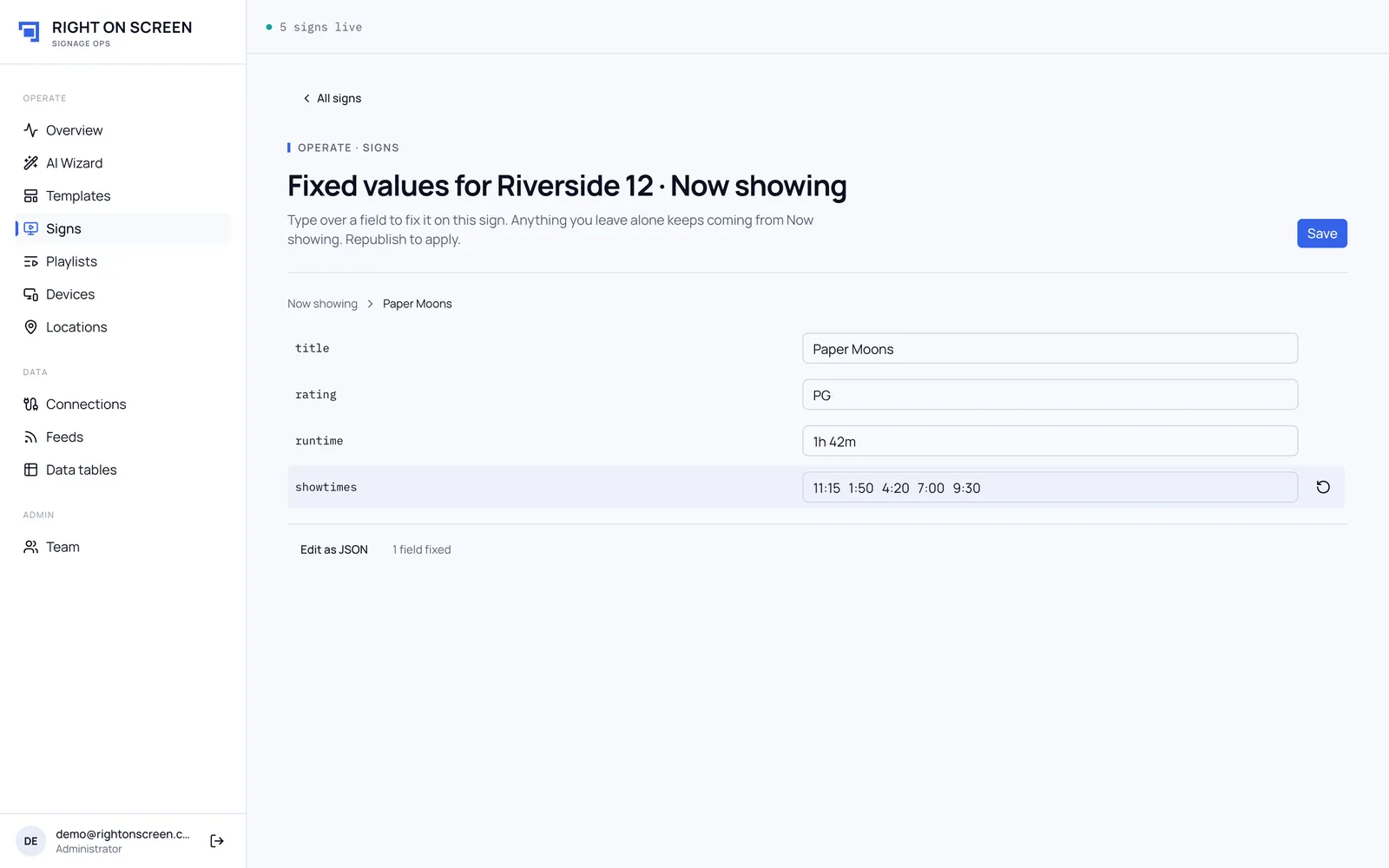
To hand a field back to the feed, use Use the feed’s value again. Edit as JSON shows everything at once.
Only fields the feed already has can be fixed. A new name is almost always a typo, so the dialog refuses it and names it. If a sign has no feed, whatever you set here becomes its data.