Screens
Locations
Add your venues with their time zone and store number, so screens show local times and each store's own data.
A location is a venue. Signs and screens belong to one, and it decides three things: the time zone schedules follow, which store’s data per-store feeds serve, and what the venue hides.
Add a location
- Go to Locations and click New Location.
- Fill in:
- Name, for example Riverside 12;
- Address;
- Time zone, which schedules at this venue follow;
- Store number · optional, which is needed if the venue sends its own data through the store agent;
- Client, to group venues by customer.
- Click Create location.
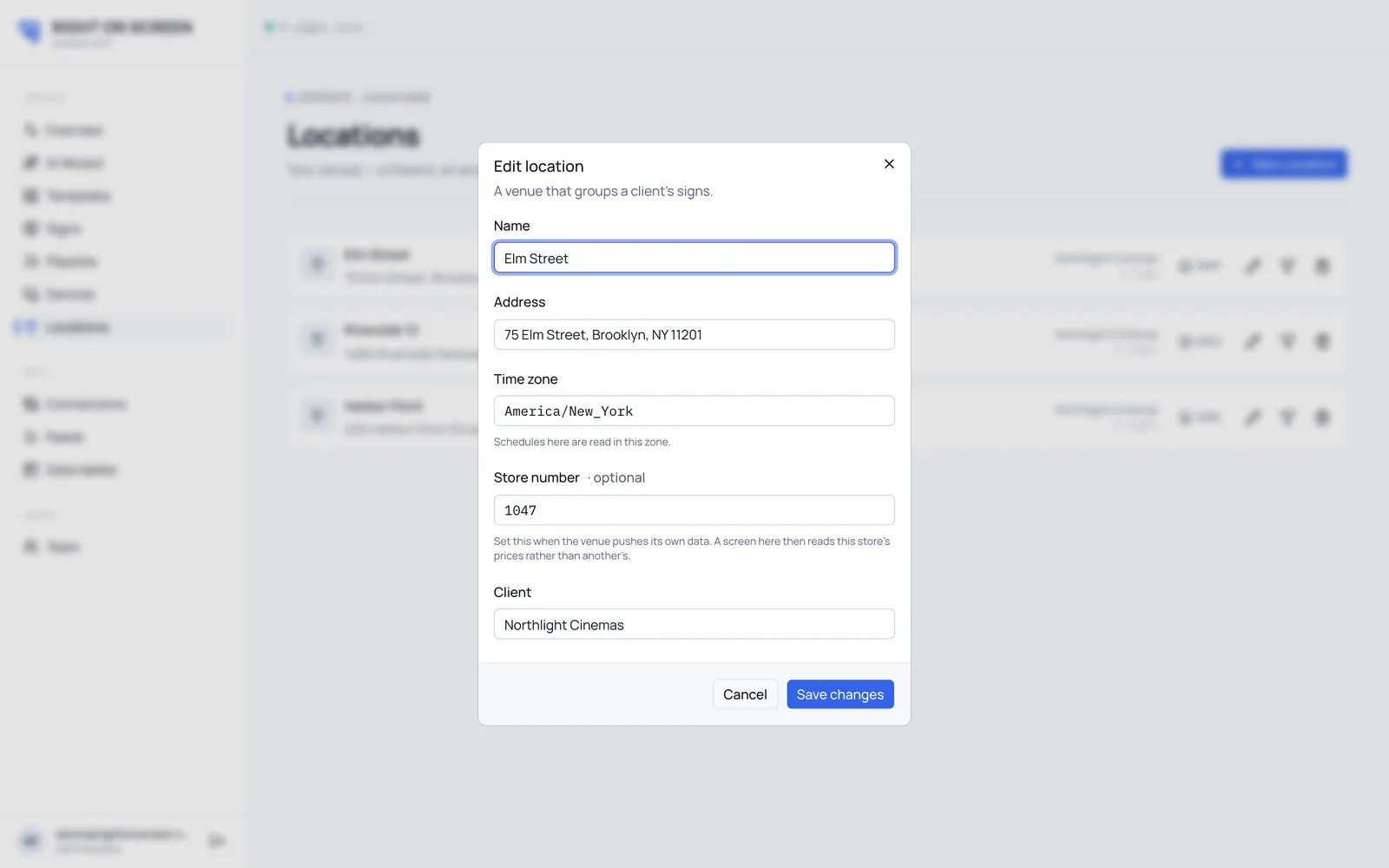
Edit a location
Click Edit location on its row, change what you need and click Save changes. You can also set the store number straight from the row.
The store number must match exactly what the venue’s store agent reports. A screen at the venue reads that store’s data from per-store feeds.
Hide items at one venue
Open What this venue shows and untick what the venue doesn’t sell. Screens update with no republish. See Rules and fixed values.
Delete a location
Signs and screens at the venue keep working, but lose their location until you give them a new one.