Screens
What a screen plays
Assign signs, playlists and media to a screen, schedule them, push content to many screens at once, and set up a standby.
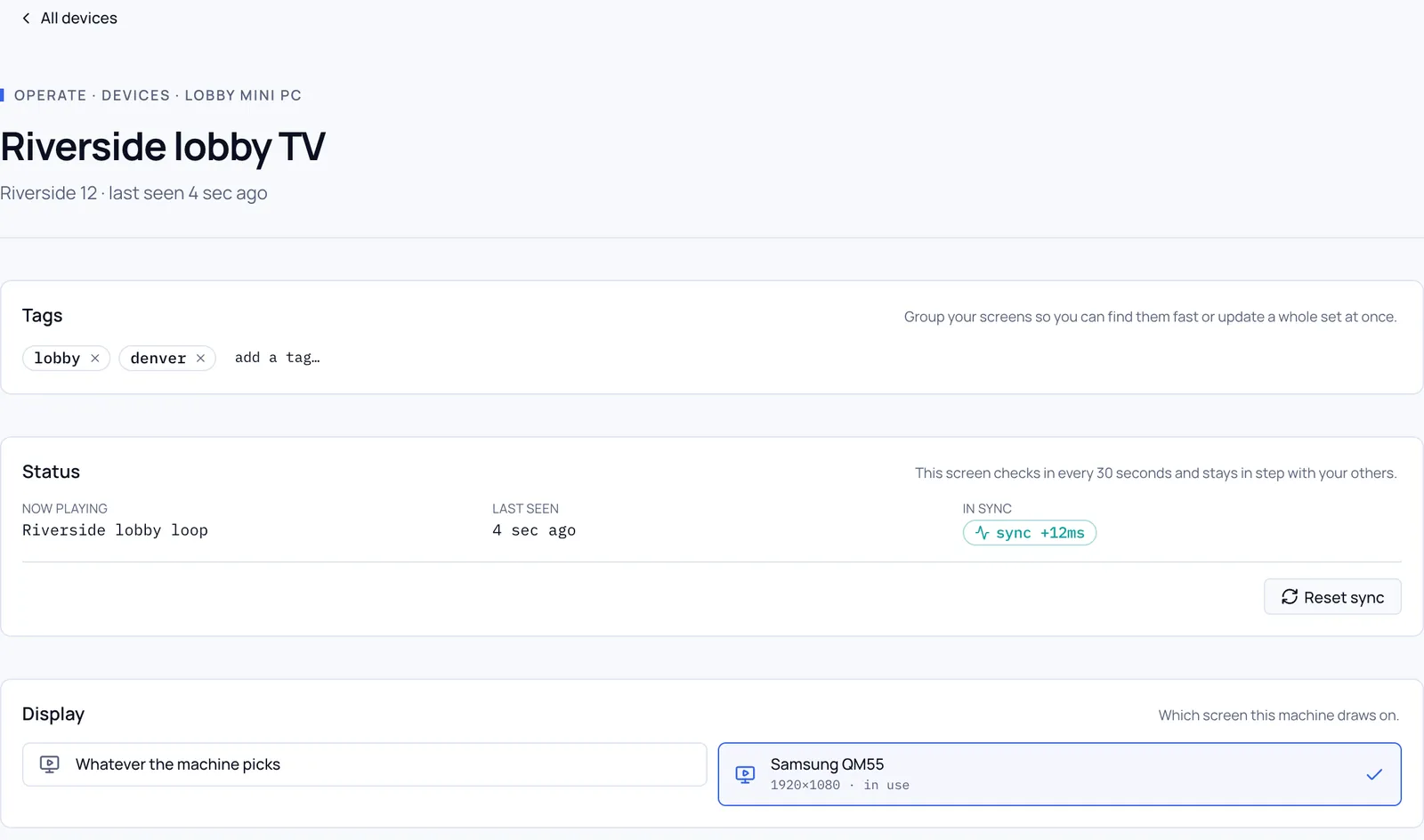
Open a screen from Devices to manage it. The list shows each screen as Online, Offline or Error. Screen dark means the computer is checking in but the TV isn’t showing it.
Choose what it plays
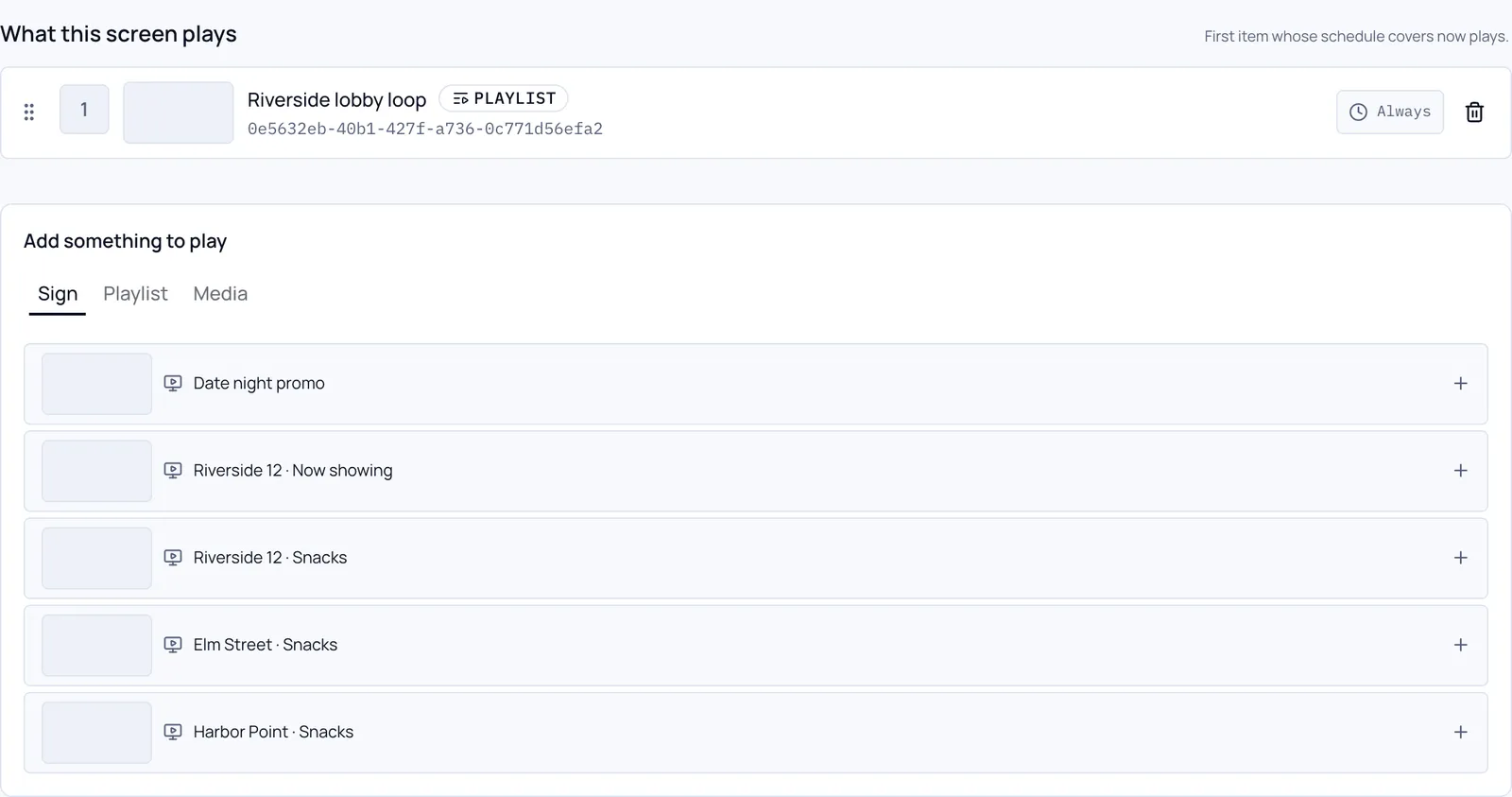
- Under Add something to play, pick a Sign, a Playlist or Media. Only published items are listed.
- It appears under What this screen plays.
- Click its schedule pill to limit when it plays.
The first item whose schedule covers the current moment is the one that plays. Drag items to change the order. An item set to always play blocks everything below it, which is marked Never plays.
Schedules can also follow your data: choose feed and point Opens at and Closes at at fields in a feed, for example a venue’s opening hours.
Status and sync
Status shows what’s Now playing, when the screen was Last seen (screens check in every 30 seconds) and whether it’s In sync. If a screen looks stuck, click Reset sync.
Pick the display
If the computer has several monitors, Display chooses which one this screen draws on.
Tag screens and push to many at once
- Add Tags to screens, such as
lobbyordrive-thru. - On Devices, use Filter by tag. A banner shows how many screens match.
- Click Push to N, pick a sign or playlist and an optional schedule, and confirm.
The pushed item goes to the front of every matching screen until you remove it. It’s the quickest way to run a promotion across a region.
Standby screens
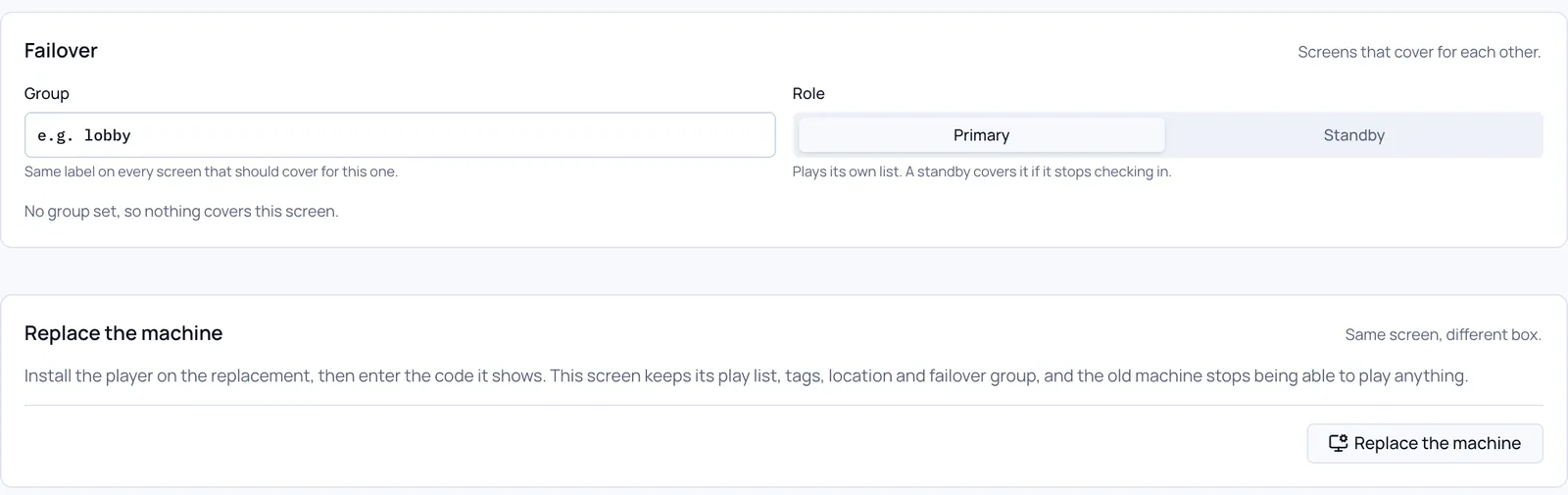
Under Failover, give two screens the same Group name, such as lobby, and set one Role to standby. If the primary stops checking in, the standby plays the primary’s content until it’s back. The list shows Covering {name} while that happens.
Replace a broken computer
Under Replace the machine, type the Code from the new machine. The new computer takes over the old one’s play list, tags, location and failover group, so nothing needs setting up again.
Remove a screen
Delete screen stops it showing content, and it goes back to showing a pairing code.