Data
Store agent
Send each venue's own data, such as local prices from its POS, from a back-office PC to a per-store feed with the Right On Screen store agent.
When the data lives inside each store, such as prices in a store’s POS, the store agent sends it to us. It’s a small Windows program that watches a folder for exports and uploads each new one.
Set up the feed
- Create a Webhook connection and copy the API key from the Webhook ready window.
- Create a feed on that connection and choose Pushed by an agent.
- The feed opens on Waiting for the first upload. It shows the Endpoint, the Connection ID and a ready-made
config.json.
Install the agent on each store PC
Put the agent and its config.json on the store’s back-office PC. The config looks like this, with the API key filled in:
{
  "endpoint": "https://api.rightonscreen.com",
  "connection_id": "<shown on the feed page>",
  "api_key": "<the key shown when the connection was created>",
  "site": "computer-name"
}
Then start it watching the export folder and register it to start with Windows:
cec-agent watch --dir "C:\ADMB" --autostartHow the agent knows which store it’s in
"site": "computer-name" reads the store number from the PC’s name, so one config works in every store. A PC called CEC9200 reports as store 9200.
The store number must match that venue’s Store number under Locations. That’s how a screen at the venue finds its own store’s data.
Check it worked
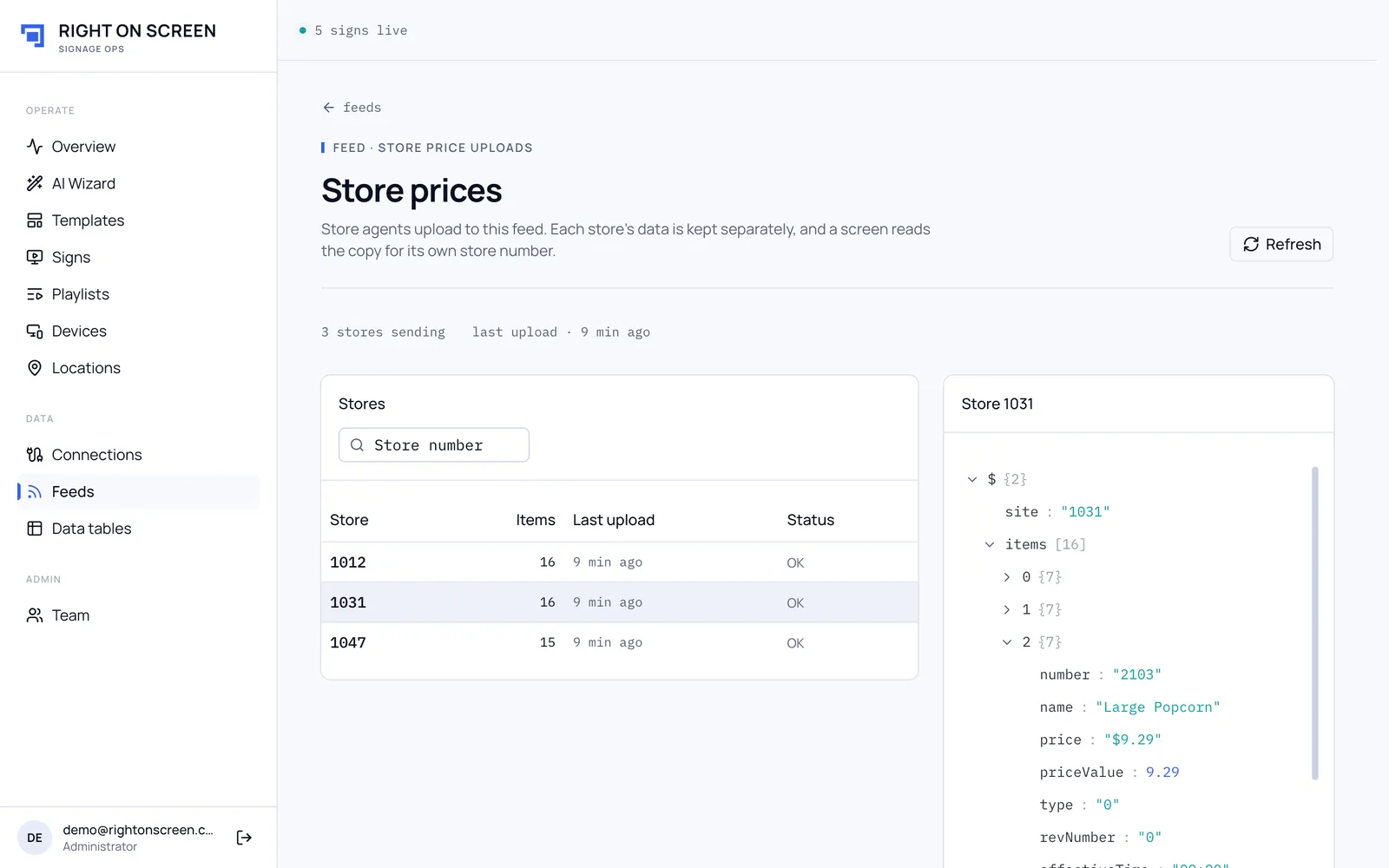
Open the feed. The store appears under Stores with its item count and last upload. Click it to see what it sent.
The agent updates itself. A few minutes after it starts, and every six hours after that, it checks for a newer signed release and installs it. Nobody needs to visit the store.