Design
Templates and the editor
Design a sign's layout once and link its text, prices and images to your data, with repeaters for menus, local-time clocks and any Google Font.
A template is a layout. Signs are templates published for a venue, so one template can power hundreds of screens.
Start a template
On Templates, click New Template for a blank 1920×1080 canvas, or Generate with AI to let the wizard draft one. Switch between Grid view and List view to browse.
Choose the data to design against
Click Preview with feed… in the top bar:
- Pick a feed… for one feed. Use Add a feed to add more, each under a short slot name such as
menu. - Or choose a Data table. If the table has per-store data, type a store number in Preview store.
The canvas fills with real data, so you design against what the screen will actually show.
Add elements
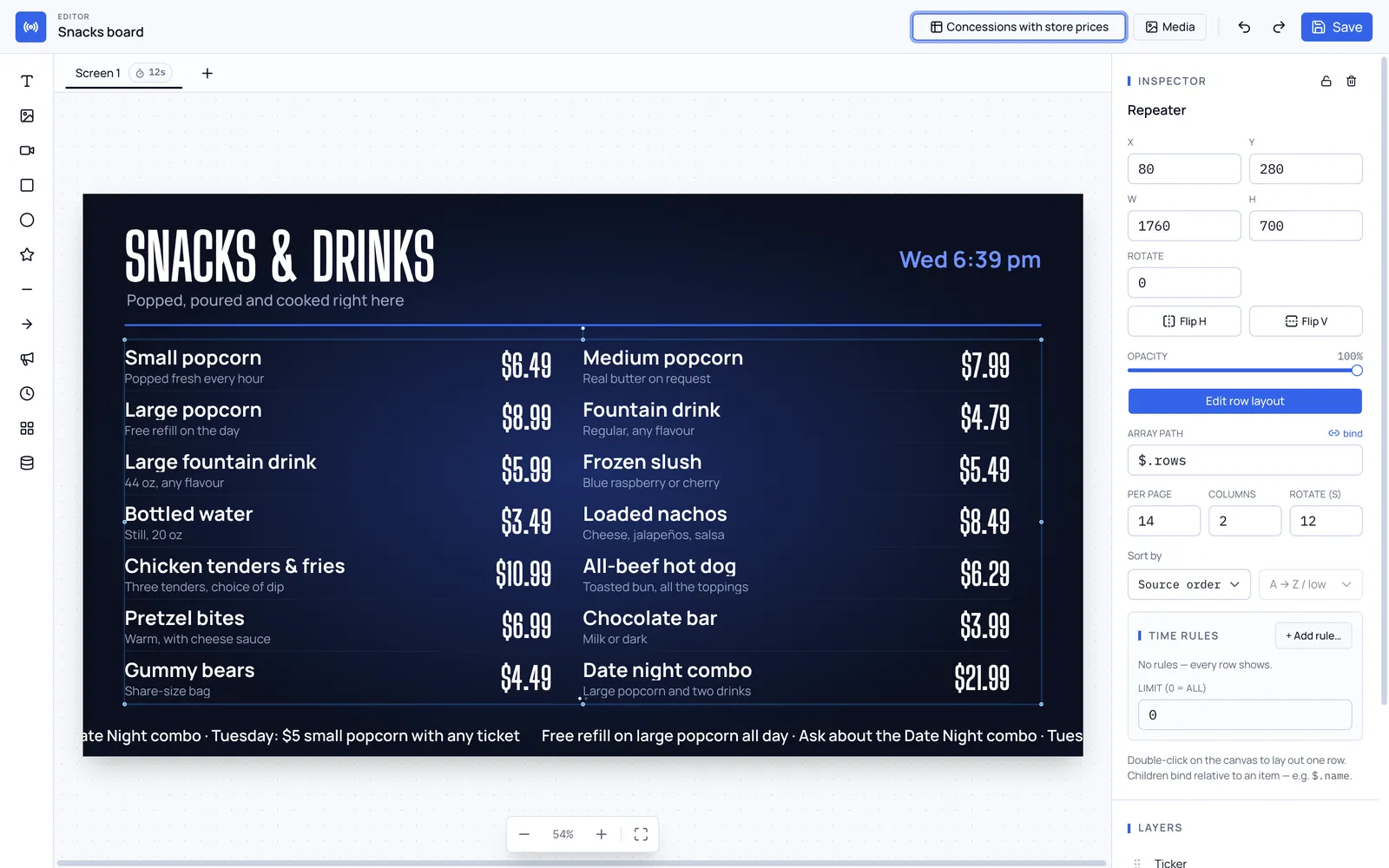
The toolbox adds Text, Image, Video, Rectangle, Ellipse, Star, Line, Arrow, Marquee, Clock and Repeater. The Data panel lists your feed’s fields. Drag one onto the canvas to place it already linked.
Select an element to edit it in the inspector: position and size, Opacity, Font (any Google Fonts family), Weight, Font size, Colour, Fill, Gradient, Drop shadow and more. With nothing selected, the inspector edits the Canvas: its size and background.
Link a property to your data
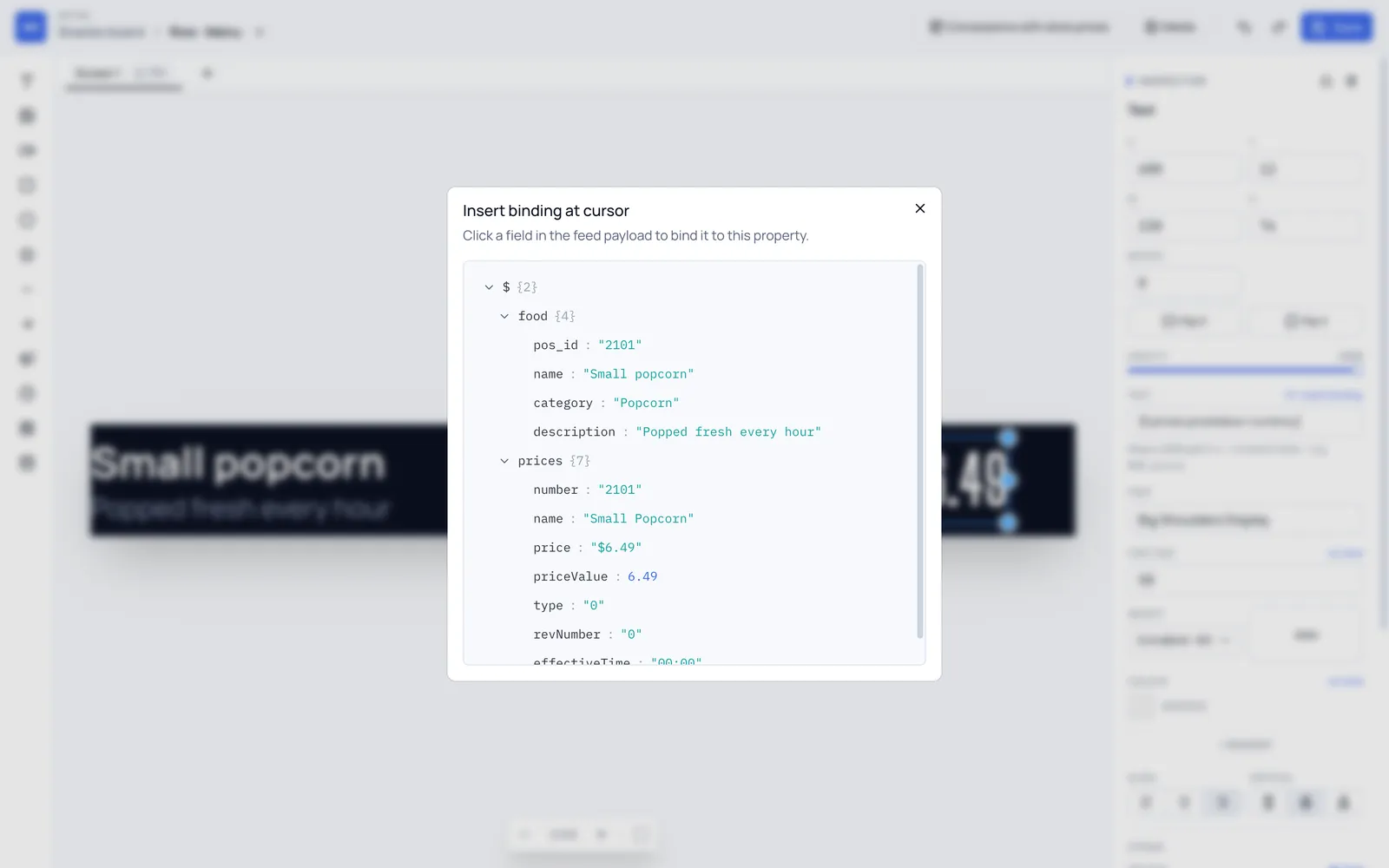
Next to each property that can be linked there’s a bind link. Click it, then click a field in the feed to link it. In text you can mix fixed words and fields, like Large popcorn · {$.price}.
Lists: the repeater
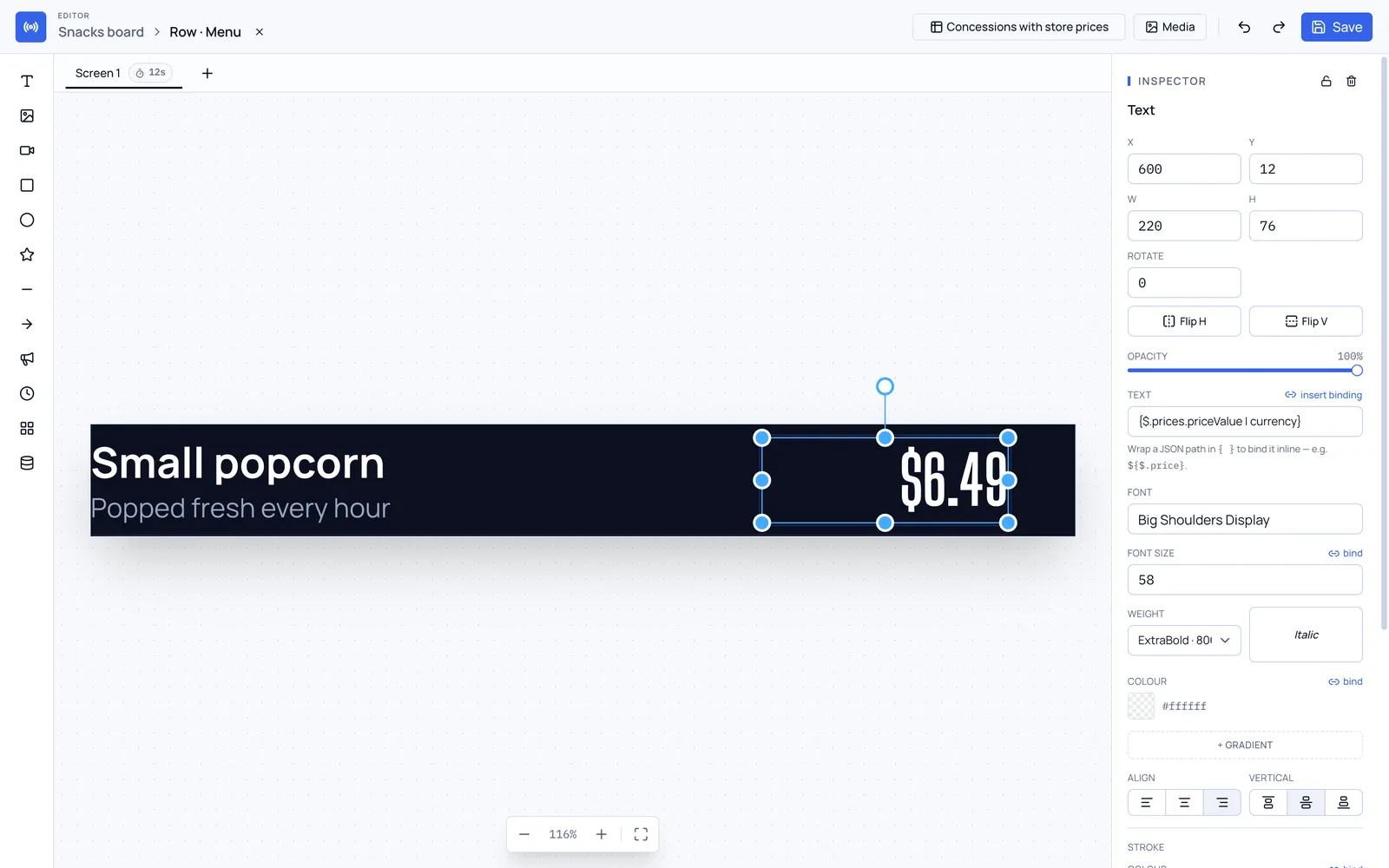
A Repeater lays out one row for each item in a list:
- Add a Repeater and set its Array path to the list, for example
$.rowsfor a data table. - Click Edit row layout and design one row. Press Esc or Exit row edit when done.
- Set Columns, Per page and Rotate (s) to page through long lists.
- Optional: Sort by a field, set a Limit, or add Time rules such as Hide past rows for showtimes.
Clocks
A Clock shows the time in the format you pick, such as 9:41 PM or Mon 9:41 PM. Every screen shows its own venue’s local time, so one sign works across time zones.
Several screens in one template
The tabs above the canvas are screens that play in turn. Add screen adds one, the duration pill sets how many seconds it shows, and right-clicking a tab lets you rename, duplicate or delete it.
Media
Click Media to upload images or video once and reuse them across signs.
Save and undo
Click Save when you’re done. Undo and Redo are in the top bar.
| Shortcut | Does |
|---|---|
| Ctrl/⌘ + Z | Undo |
| Ctrl/⌘ + Shift + Z | Redo |
| Ctrl/⌘ + D | Duplicate |
| Ctrl/⌘ + C, V | Copy, paste |
| Ctrl/⌘ + [ or ] | Move a layer down or up |
| Arrow keys | Nudge 1px (Shift: 10px) |
| Delete | Delete |
A template that a sign is built from can’t be deleted.