Publish
Signs
Publish a template for a venue so screens can play it. Published signs update themselves when the data changes; republish only after a design change.
A sign is a template published for a location. Publishing turns it into a web page that screens load, and screens can only play published signs.
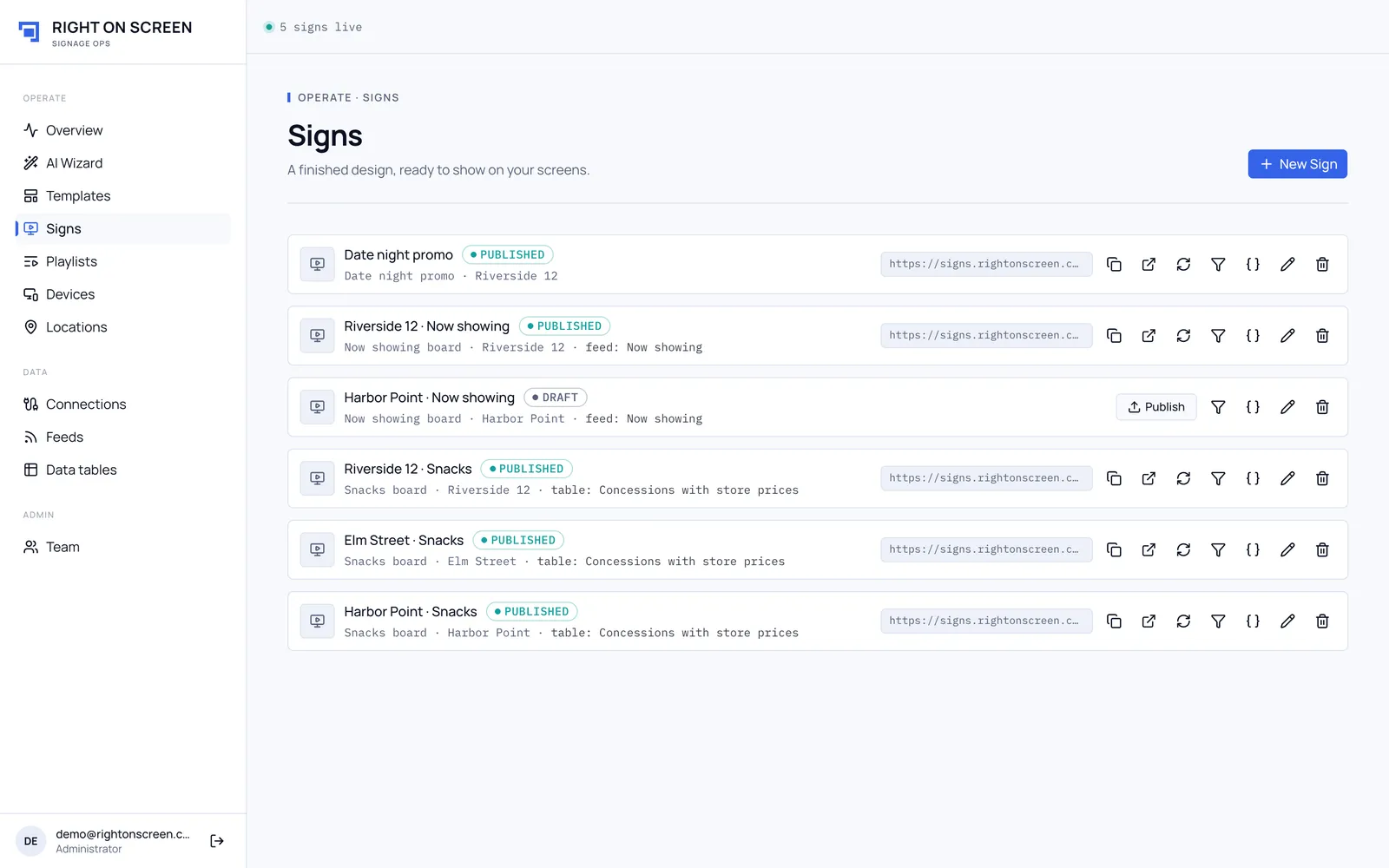
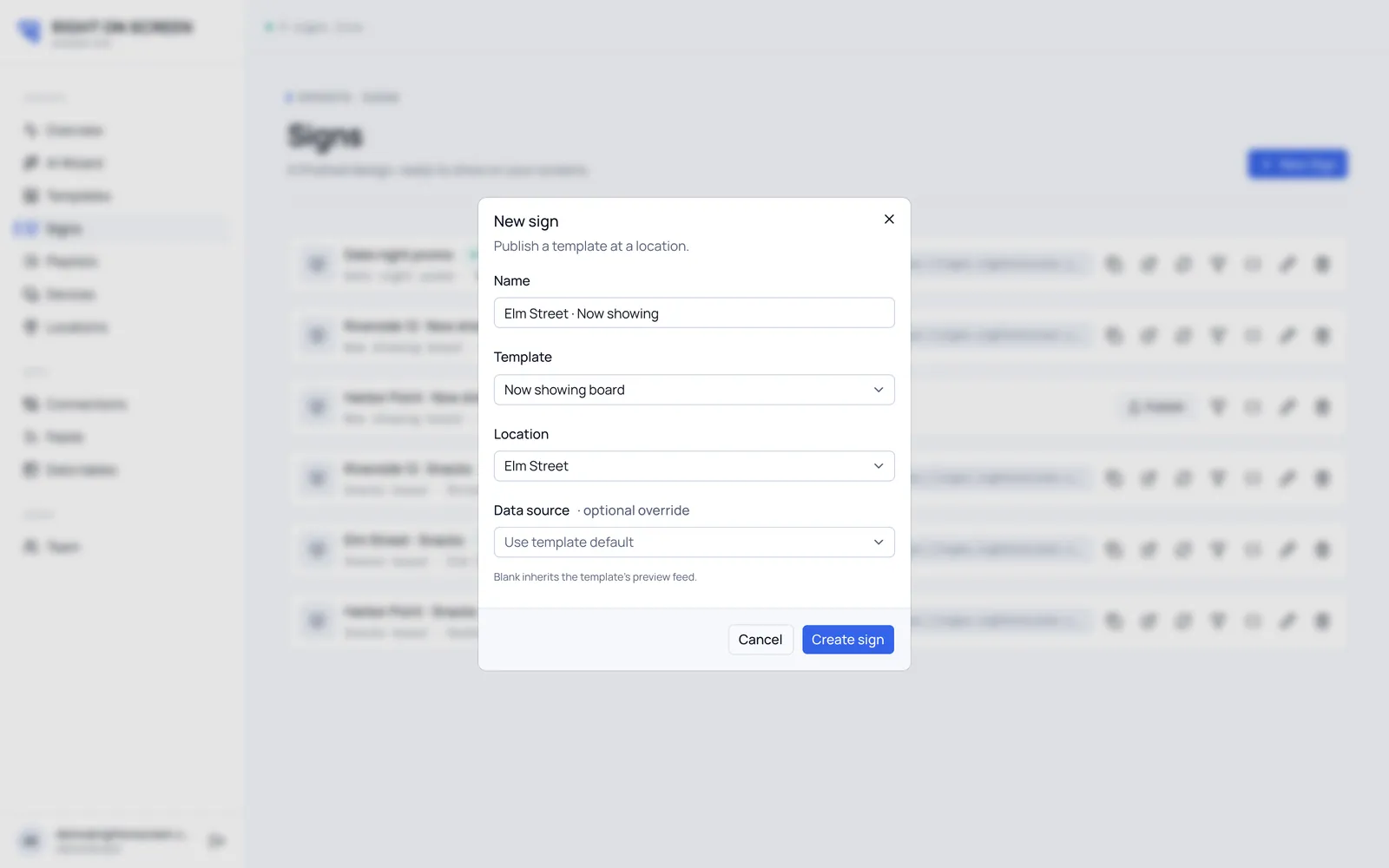
Create a sign
- Go to Signs and click New Sign.
- Enter a Name, then pick the Template and the Location.
- Optional: under Data source · optional override, choose a different feed from the one the template was designed with. Leave it blank to use the template’s own. If the template uses a data table, the form says so.
- Click Create sign. It starts as a Draft.
Publish
Click Publish on the sign’s row. When it’s live the row shows Published and the sign’s address, with buttons to Copy player URL and Open sign in new tab.
When the data changes, a published sign updates by itself. You only publish again when the design changes.
Republish after a template change
If the template is edited after the sign was published, the row shows Template updated. Click Republish to send the new design to the screens.
Change what one sign shows
Two tools on the sign’s row adjust a single sign without touching the template:
- What this sign shows hides rows, such as items this venue doesn’t sell.
- Fixed values for this sign types over a value from the feed.
Both are covered in Rules and fixed values.
Rename or delete
Rename sign is on every row. Delete sign is refused if the sign is in a playlist or assigned to a screen, and nothing changes. Remove it from those first.