Publish
Playlists
Rotate several signs or media files on one screen, schedule items by day, time or date, and choose fade or cut transitions.
A playlist plays its items in turn on a shared clock. Every screen playing the same playlist turns over at the same moment, so a row of boards stays in step.
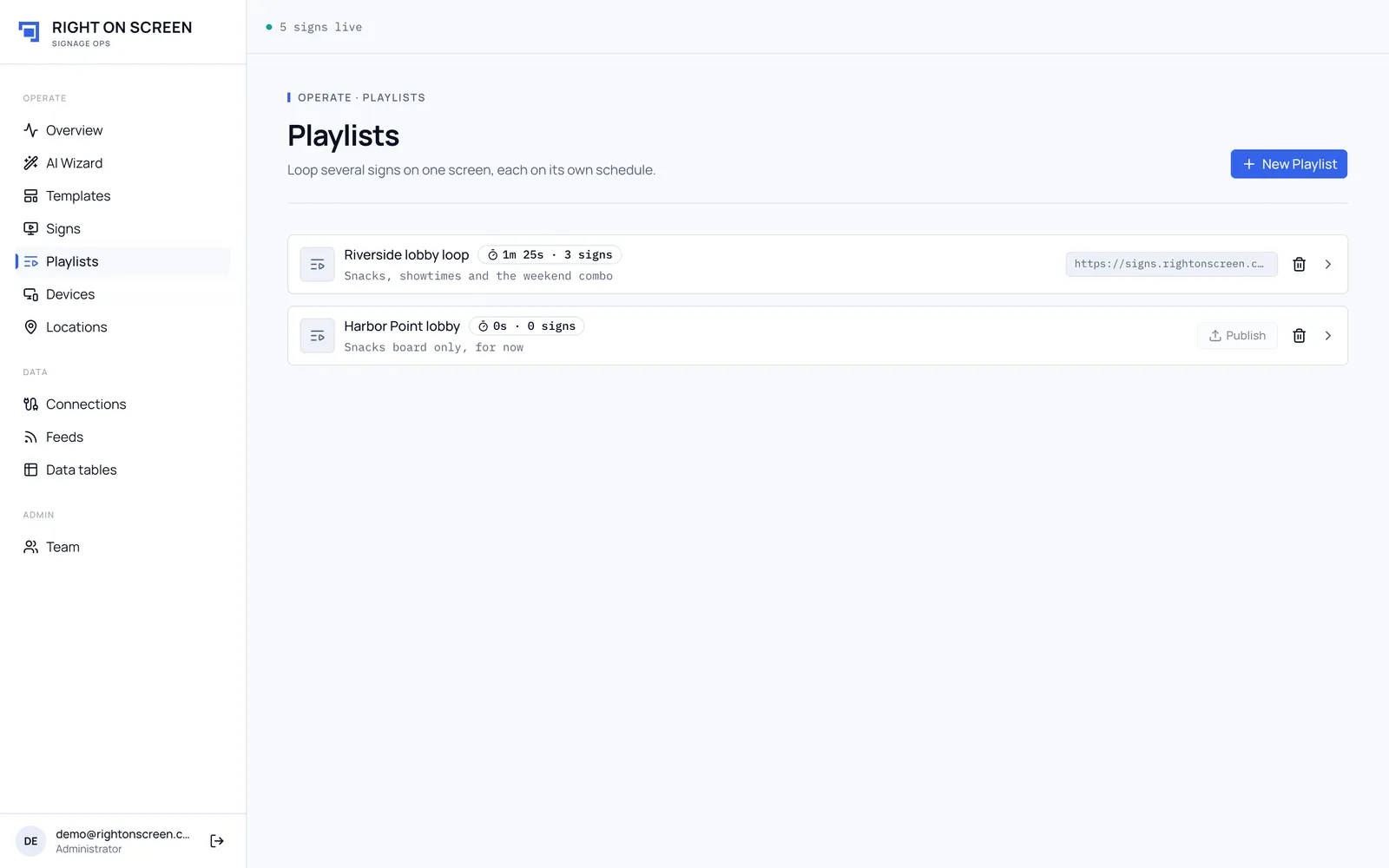
Create a playlist
- Go to Playlists and click New Playlist.
- Enter a Name and an optional Description, then click Create playlist.
Add items
- Open the playlist and click Add to playlist.
- On Sign, search for a published sign. Only published signs are listed, and the same sign can be added more than once.
- On Media, choose an image or video from the media library.
Changes save as you go. For each item you can:
- drag it to reorder;
- set how long it shows in Rotation duration, for example
30s,5mor1h30m; - choose Cut or Fade for the transition;
- Remove it.

Schedule an item
Click an item’s schedule pill to choose when it may play:
- always;
- weekly: add rules for days and times, such as breakfast on weekdays until 11:00;
- dates: a date range, such as a holiday promotion.
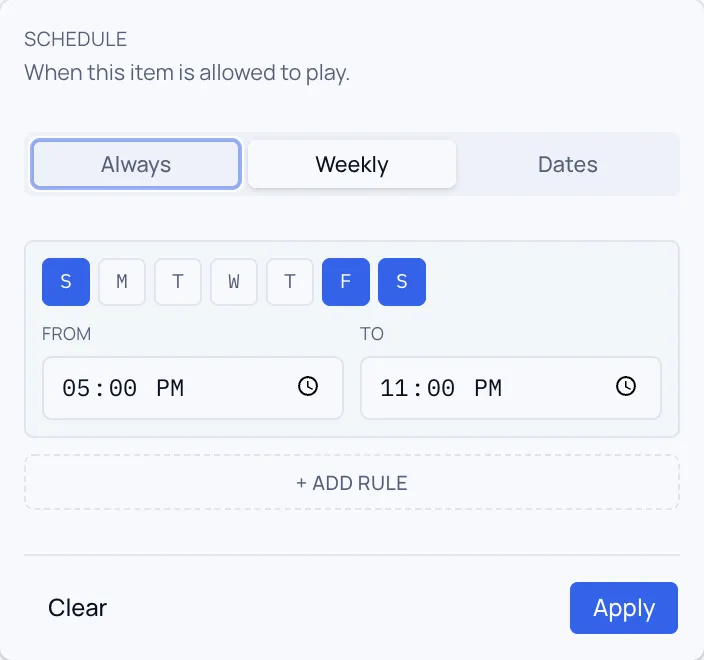
Only items whose schedule covers the current moment play. Times follow each venue’s own time zone.
Publish
Click Publish. A playlist needs at least one item. After editing, click Republish.
A playlist assigned to a screen can’t be deleted.