Data
Feeds
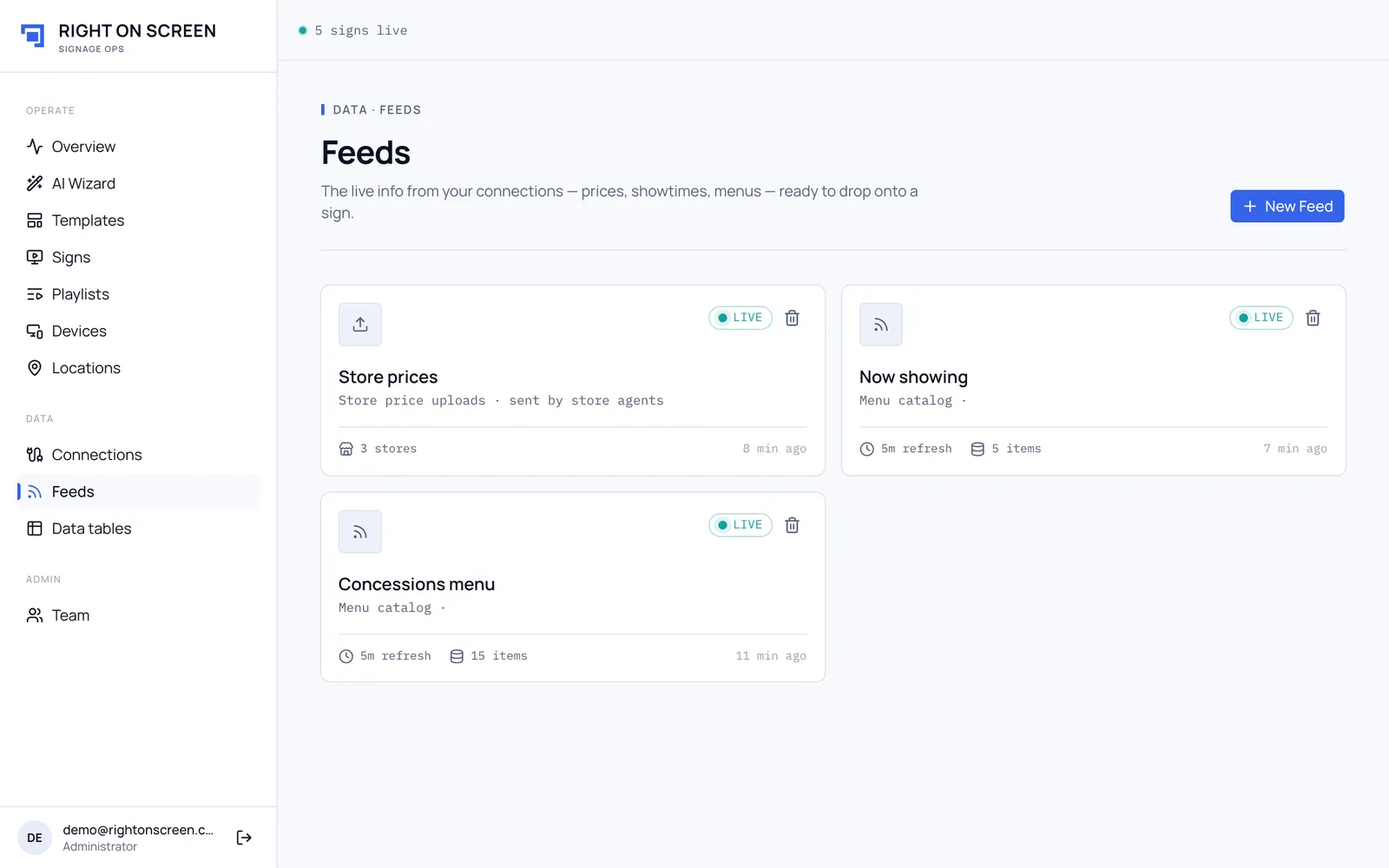
A feed is one list of data read through a connection. Create one, check what it returns, and see what each store sent.
A feed is the data a sign reads, such as a menu, a list of showtimes or a price list. Templates link their text and images to fields inside a feed.
Create a feed
- Go to Feeds and click New Feed.
- Enter a Name, for example Now Showing.
- Choose a Connection:
- — None (public URL) — for an open endpoint;
- one of your connections;
- or + New authenticated source… to create a REST connection without leaving the page.
- Choose the Source kind:
- JSON URL: any endpoint that returns JSON. Fill in the Source URL and, if the list sits inside the response, the Items path (for example
data.items). - Vista: cinema showtimes. Enter the Vista API host, API version and Cinema ID.
- For a Toast connection, enter the Toast API host and Restaurant GUID.
- For a Webhook connection you’ll see Pushed by an agent instead. See Store agent.
- JSON URL: any endpoint that returns JSON. Fill in the Source URL and, if the list sits inside the response, the Items path (for example
- Set Refresh (s), how often we read the source. The default, 86400, is once a day.
- Click Create feed.
Upload a file instead
A feed with no URL (usually one on a Flat File connection) is filled by hand:
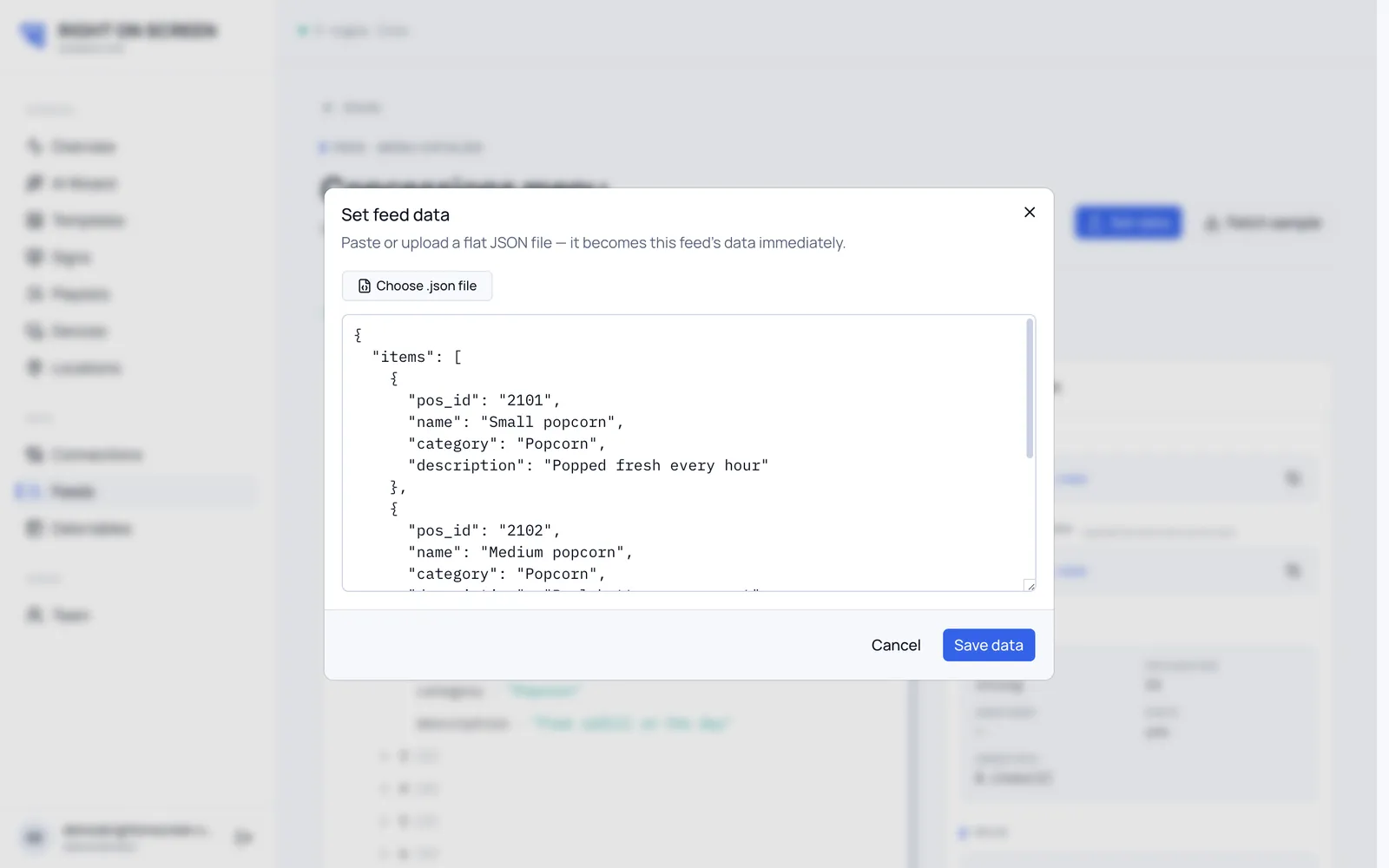
- Open the feed and click Set data.
- Click Choose .json file, or paste the JSON.
- Click Save data. The message says how many items loaded, or No change — identical data if nothing changed.
Check what a feed returns
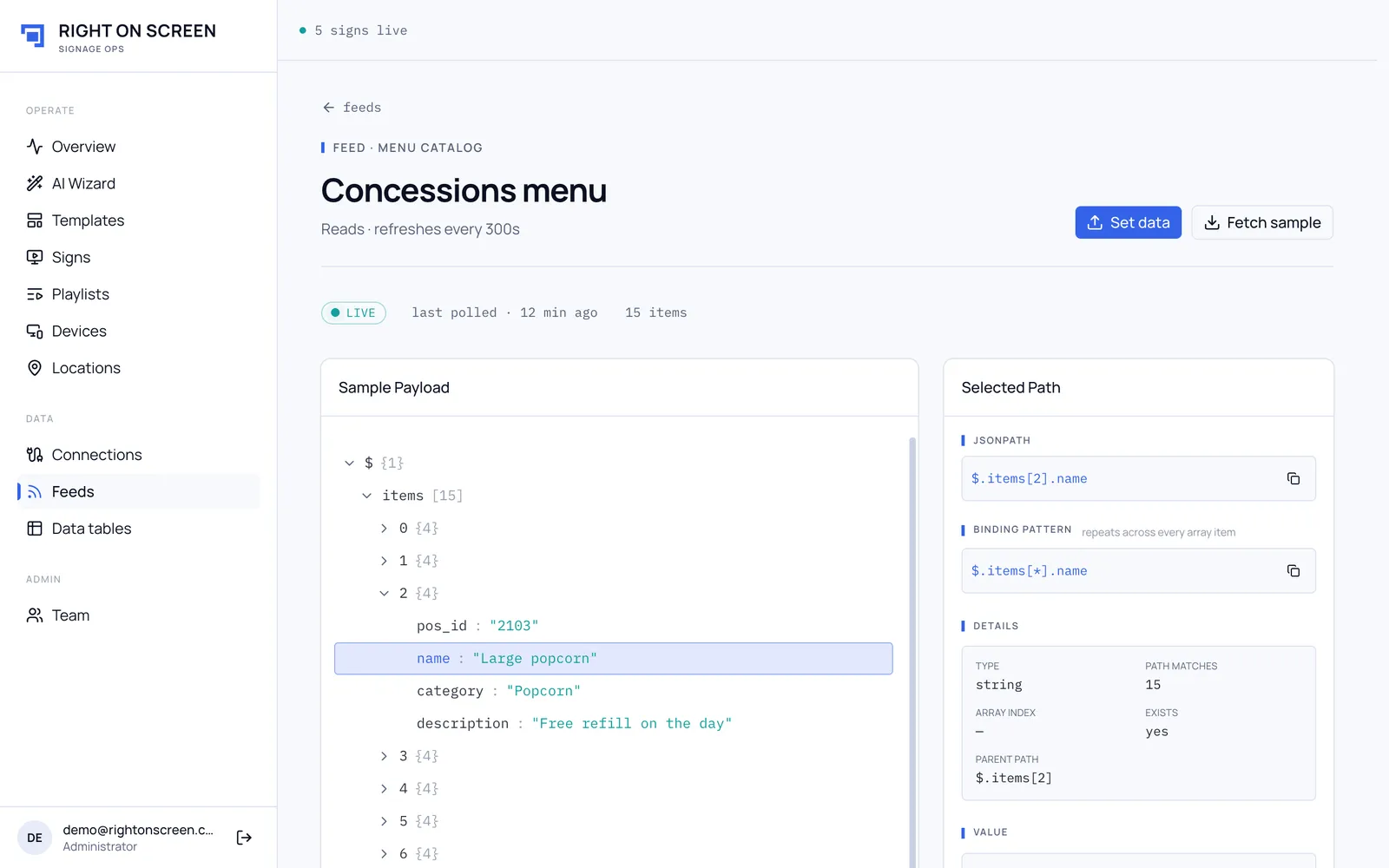
Open a feed to see its Sample Payload, the last data we read, as a tree. Click Fetch sample to read it again now.
Click any value in the tree and Selected Path shows the path you’d use to bind to it, its type, and a Binding pattern that repeats across every item in a list.
If something is wrong, a box at the top explains it. For example, the feed has no source to read, automatic refresh is off, or the Last error from the source.
Per-store feeds
A feed that stores send to (Pushed by an agent) keeps a separate copy of the data for each store. Its page lists the Stores that have sent data, with Items, Last upload and a Status of OK or Refused. Search by Store number, and click a row to see exactly what that store sent.
A refused upload doesn’t blank anything: that store’s screens keep showing what it sent before.
Delete a feed
Delete it from the Feeds list. It stops refreshing, and templates previewing with it lose the link. A feed that a sign still uses can’t be deleted.