Data
Data tables
Join several feeds into one list, such as your menu with each store's prices, then fix values by hand and hide rows.
A data table combines feeds into one table that templates can use like a feed. The usual reason is prices: the menu comes from one feed, each store’s prices from another, and the table puts them side by side.
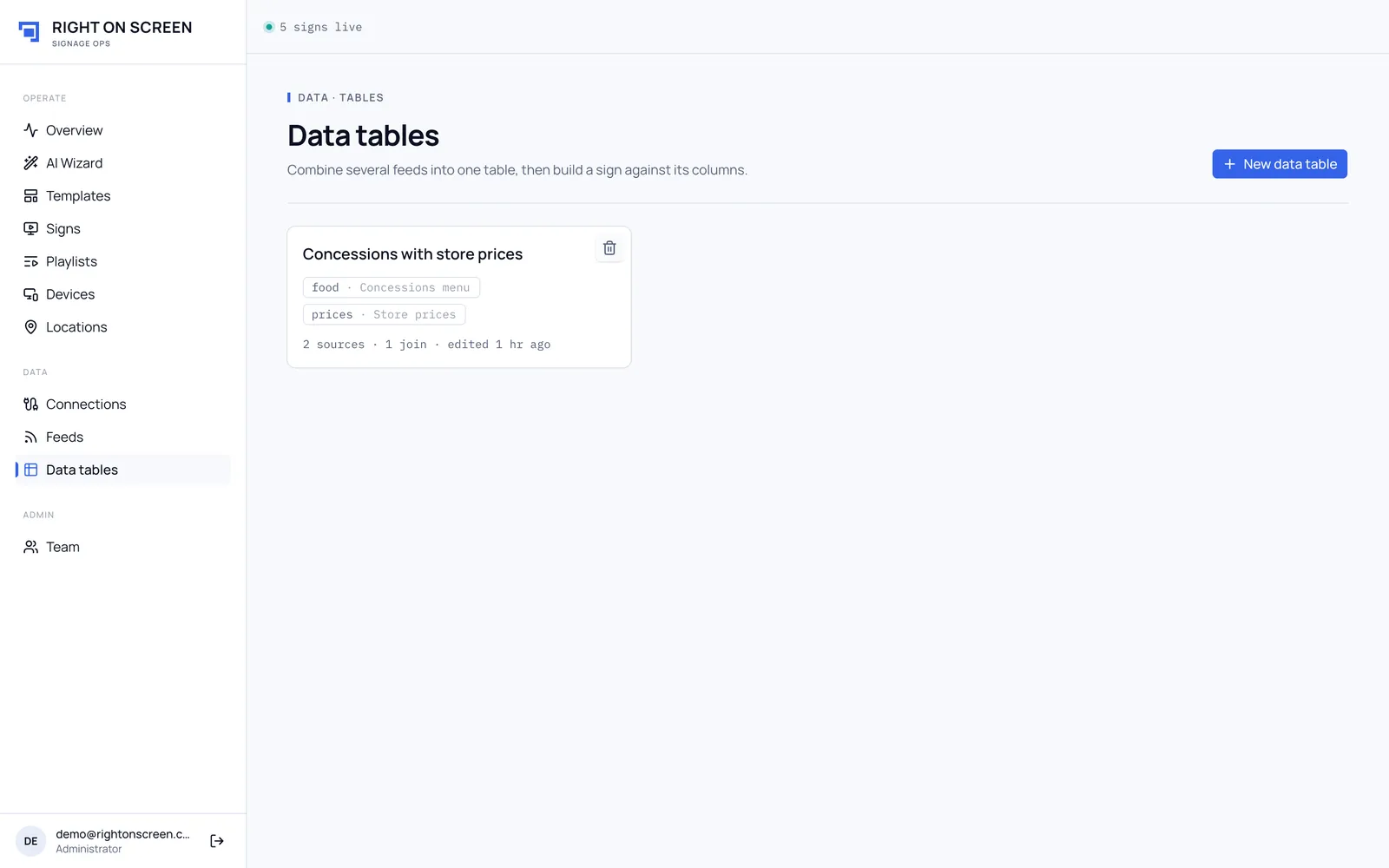
Build a table
- Go to Data tables and click New data table.
- Give it a Name, for example Menu board data.
- From Add a feed, pick the feed your rows come from. The first feed is the base rows: the table has one row for each of its items.
- Add the other feeds the same way. Each gets a Column prefix (like
foodorprices), so you can tell whose columns are whose. - On each source, click Rows come from and pick the list of items in the tree that opens. Only lists can be picked. If you already know the path, use Or type a path. The source then shows how many rows it read.
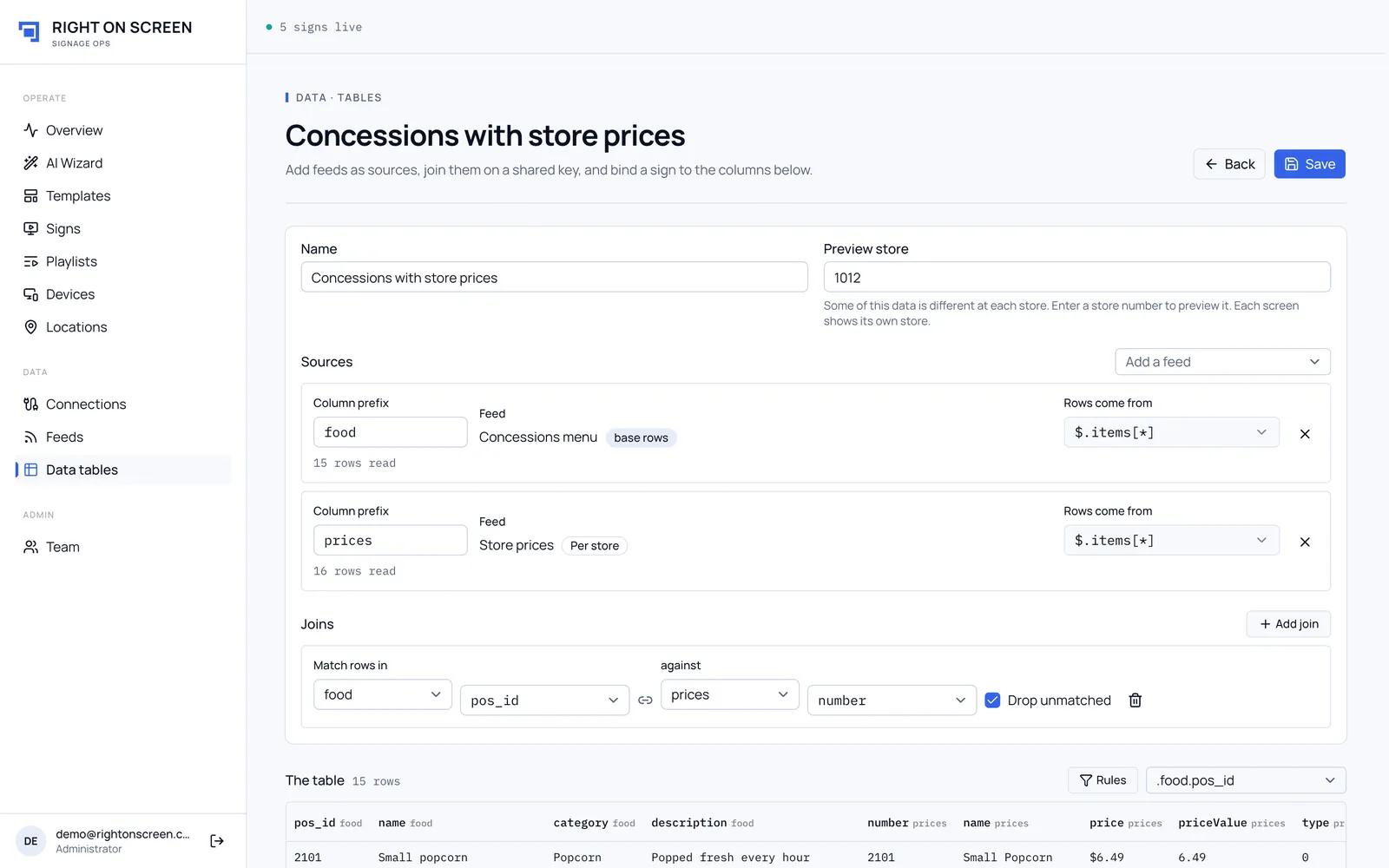
Join the feeds
- Click Add join.
- Set Match rows in to the base source and pick its matching field, then against the other source and its field. Each dropdown lists the feed’s real fields with a sample value, so you don’t type anything.
- Tick Drop unmatched to leave out base rows with no match, such as menu items a store doesn’t price.
Preview a store
If any source is Per store (sent by store agents), a Preview store box appears. Type a store number to see that store’s version of the table. On screens, each venue sees its own store automatically.
Fix a value by hand
Click any cell in The table, type the new value and press Enter. The cell turns blue to show it’s fixed here, and the feed no longer controls it. To hand it back to the feed, clear the box and press Enter.
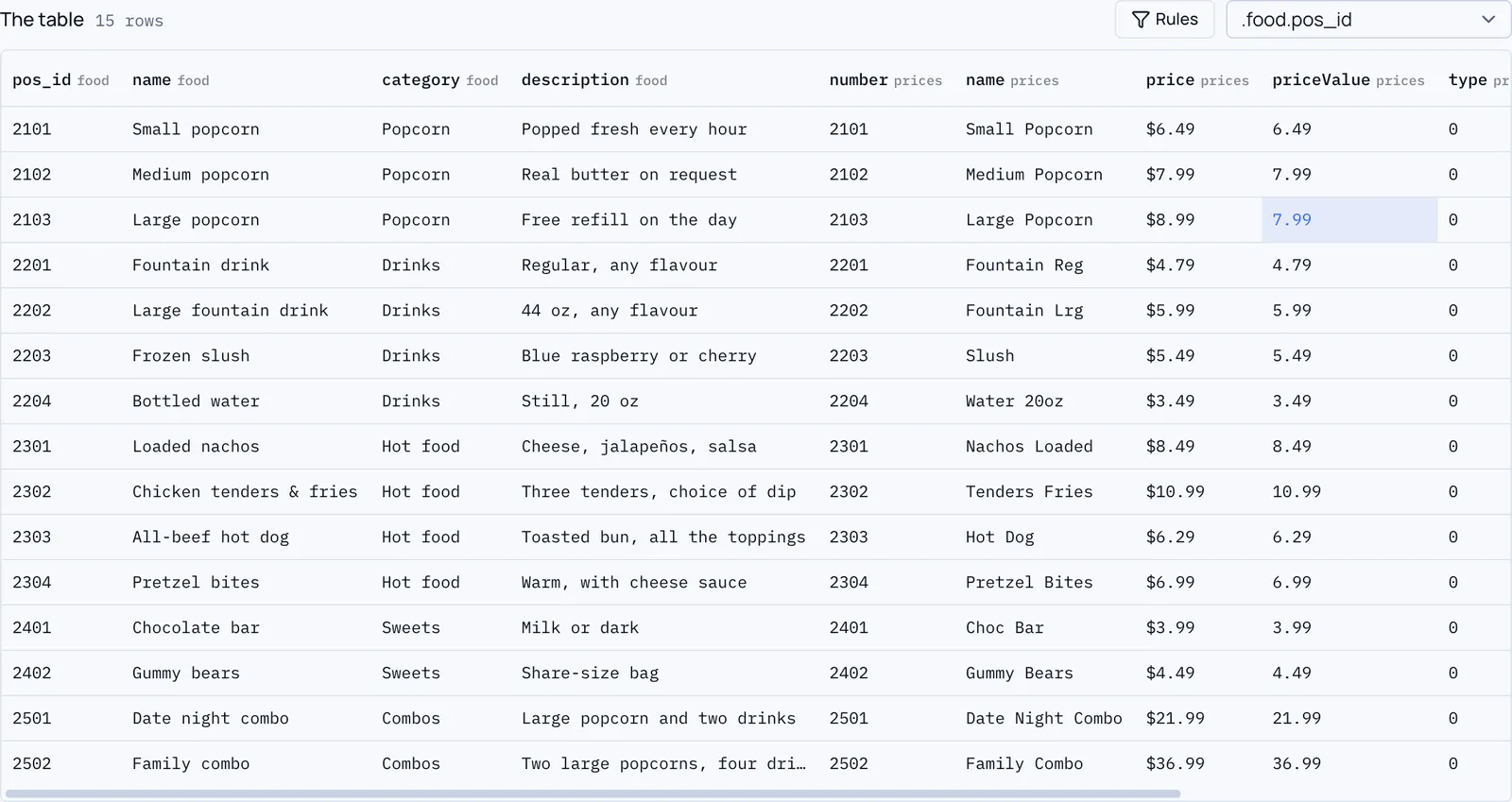
Fixed values are matched to rows by the key chosen in rows keyed by. If a row has no value for that key, it can’t be fixed.
Hide rows
Click Rules and choose a field under Hide by, then untick what shouldn’t show. The table header shows how many rows remain and how many there were before the rules. Hidden items stay in the list, crossed out, so you can tick them back.
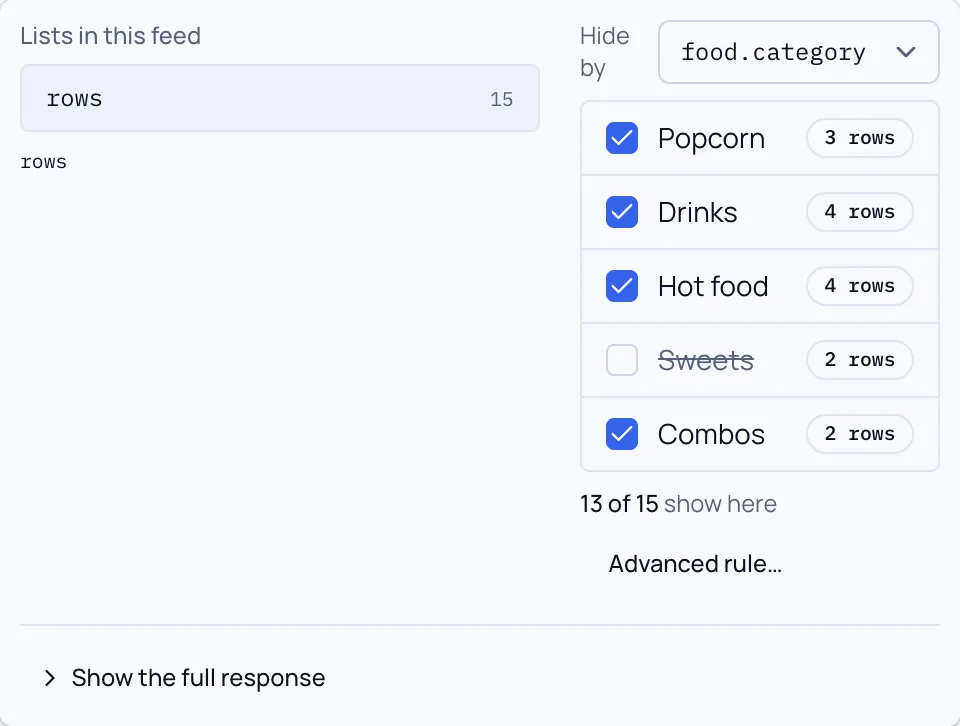
Save
Click Save. The message says how many signs are updating: published signs that use the table are rebuilt with the new data automatically, so you don’t need to republish them.