Data
Connections
Tell Right On Screen where your data lives and how to sign in to it. Feeds read through connections.
A connection is a data source plus the credential it needs. It doesn’t read anything on its own: feeds do the reading, and several feeds can share one connection.
Pick the right source type
| Source type | Use it when |
|---|---|
| REST API | Your system has a URL that returns JSON. We poll it on a schedule. |
| Webhook | Your system (or our store agent) sends data to us when it changes. |
| Flat File | You’ll upload a JSON file by hand. |
| Toast | Your menu lives in Toast POS. Each feed picks its own restaurant. |
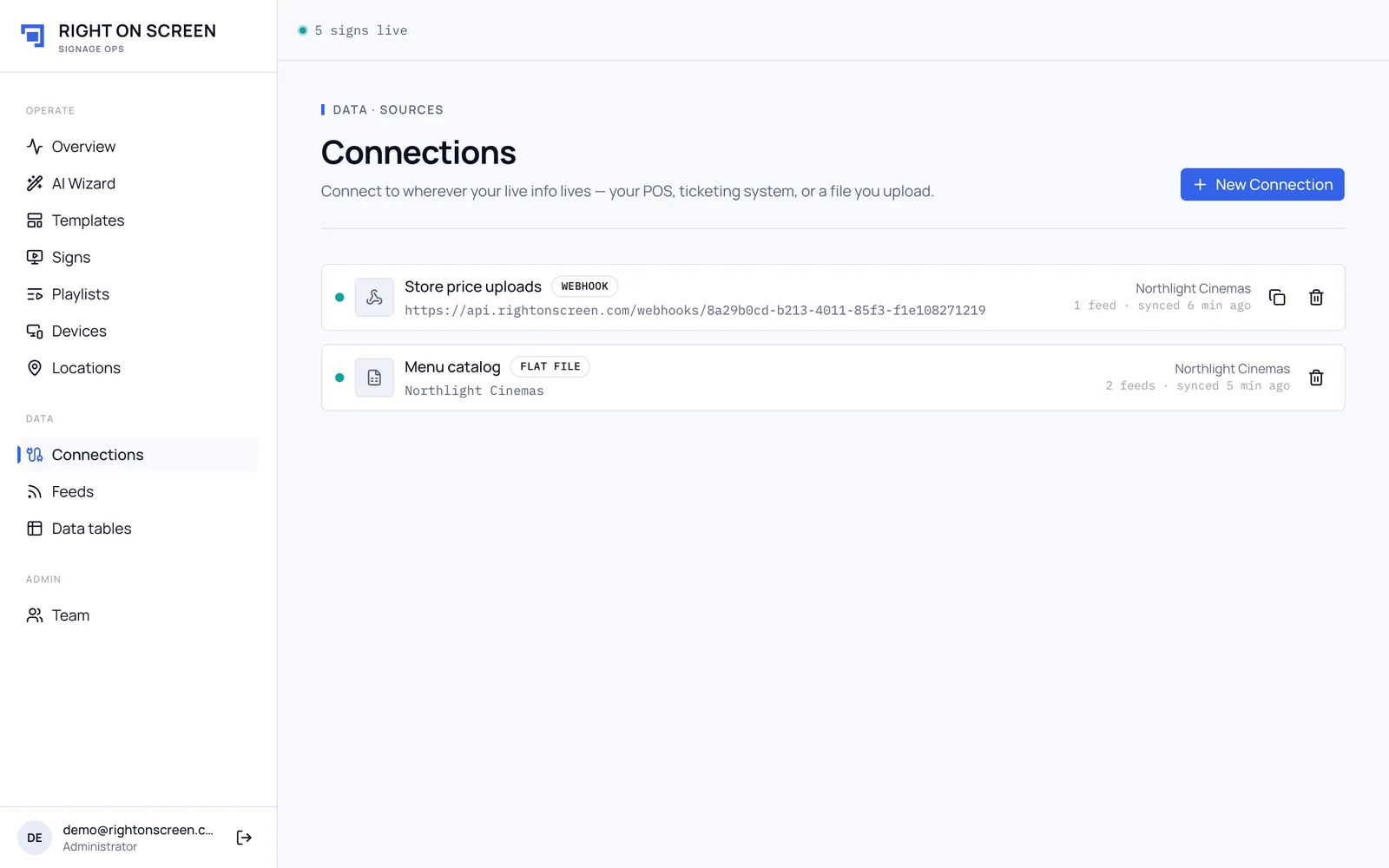
Create a connection
- Go to Connections and click New Connection.
- Give it a Name of at least three characters.
- Choose a Source type.
- For REST API, choose the Authentication your endpoint needs:
- None — open endpoint
- Bearer token, then paste the Token
- API key header, then the Header name and its Value
- Basic auth, with a Username and Password
- For Toast, enter the Client ID and Client secret.
- Optionally fill Client to group connections by customer.
- Click Create connection.
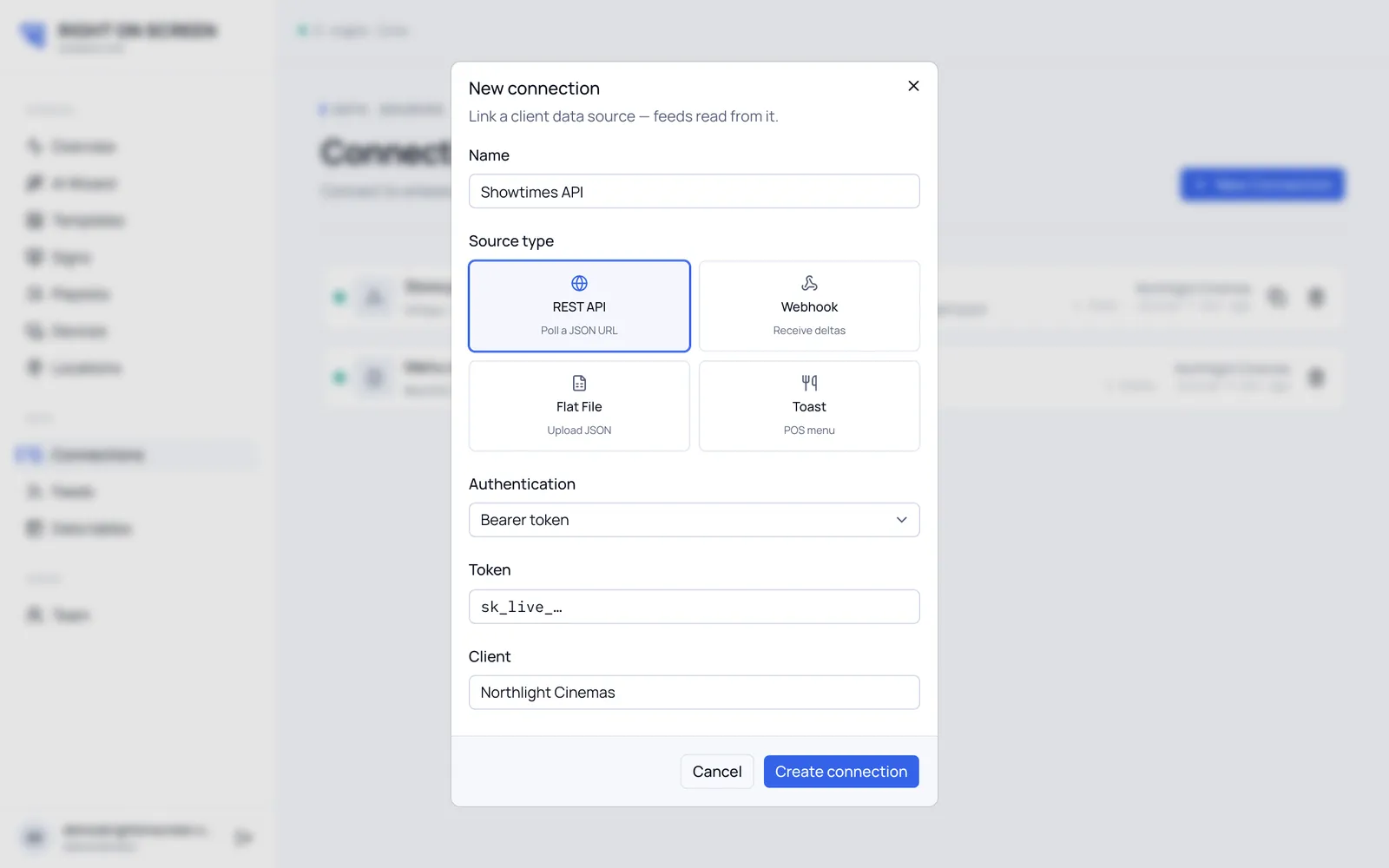
The URL isn’t entered here. Each feed has its own URL, so one API login can serve many feeds.
Webhooks: copy the key now
When you create a Webhook connection, a Webhook ready window shows the Inbound URL and the API key.
The key is shown only once. Copy it before you click Done. Whatever sends the data must include it in the
x-api-keyheader on every request.
To copy the URL again later, use Copy webhook URL on the connection’s row. The key can’t be shown again.
Delete a connection
Click Delete connection on its row. The stored credential is deleted too and can’t be recovered. If any feed still uses the connection, the delete is refused and nothing changes. Delete or move those feeds first.