Start here
Getting started
How connections, feeds, templates, signs, playlists and screens fit together in Right On Screen, and where to find each one in the dashboard.
Right On Screen takes data you already have, lays it out as a sign, and plays that sign on screens in your venues. When the data changes, the screens change with it. Everything below happens in the dashboard at app.rightonscreen.com.
How the pieces fit
Everything in the dashboard is one of these, and each builds on the one before it:
| Piece | What it is | Example |
|---|---|---|
| Connection | Where your data lives, and how to log in to it | Your POS API |
| Feed | One list of data read through a connection | Snack menu |
| Data table | Several feeds joined into one list (optional) | Snack menu with each store’s prices |
| Template | A layout whose text and images are linked to fields | Four-column snacks board |
| Sign | A template published for a venue | Riverside 12 snacks board |
| Playlist | Several signs taking turns (optional) | Snacks, then trailers, then combos |
| Location | A venue, with its time zone and store number | Riverside 12 |
| Device | A screen that plays a sign or playlist | Lobby TV 1 |
Build them in that order the first time: connect data, design a template, publish a sign, then pair a screen.
Find your way around
The sidebar has three groups:
- Operate: Overview, AI Wizard, Templates, Signs, Playlists, Devices and Locations.
- Data: Connections, Feeds and Data tables.
- Admin: Team (administrators only).
The top bar shows how many signs are live. Your email, your role and the Sign out button are at the bottom of the sidebar. If you belong to more than one account, an Active tenant picker appears there too.
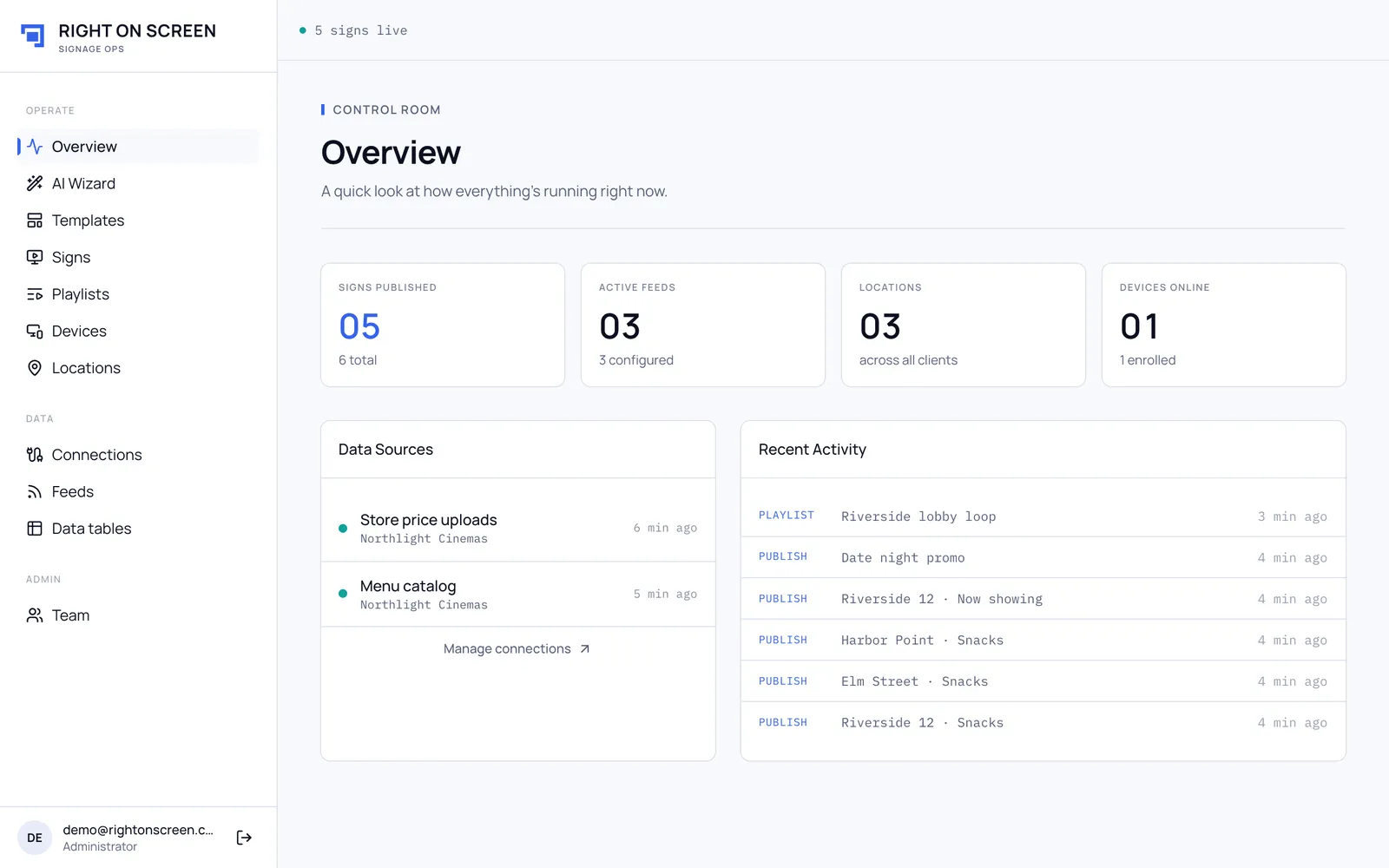
The Overview page
Overview is the control room. Four tiles count your Signs Published, Active Feeds, Locations and Devices Online. Data Sources lists your connections, and Recent Activity shows publishes and feed refreshes as they happen.
What you can see depends on your role
- Administrators see everything, including Team.
- Editors see everything except Team.
- Managers see only Signs and Devices, and only at the venues they were given. Managers open straight into Signs.
Next, connect your data.